
Da Locale a Globale in Meno di 10 Minuti
Aggiungere il tuo sito web a MultiLipi fa più che tradurre il tuo testo. Costruisce uno specializzato "Infrastruttura Globale" che serve i tuoi contenuti tramite una CDN ad alta velocità, li ottimizza per Google (SEO) e li struttura per gli agenti AI (GEO).
Segui questa guida passo passo per passare da "Locale" a "Globale" in meno di 10 minuti.
Perché aggiungere il tuo sito web? (I 3 vantaggi principali)
Prima di iniziare, ecco cosa stai sbloccando:
Il tuo sito diventerà immediatamente indicizzabile in nuove regioni (ad es. fr.tuosito.com), moltiplicando le tue opportunità di posizionamento per parole chiave.
Abilitando la nostra tecnologia GEO, i tuoi contenuti diventano "leggibili" per modelli AI come ChatGPT e Gemini, aumentando le tue possibilità di essere citato come risposta.
La nostra AI adatta i tuoi contenuti allo specifico settore e alle sfumature culturali del tuo mercato di riferimento, non solo a una traduzione diretta.
Fase 1: Configurazione Account e Inizializzazione Progetto
Registrati o Accedi
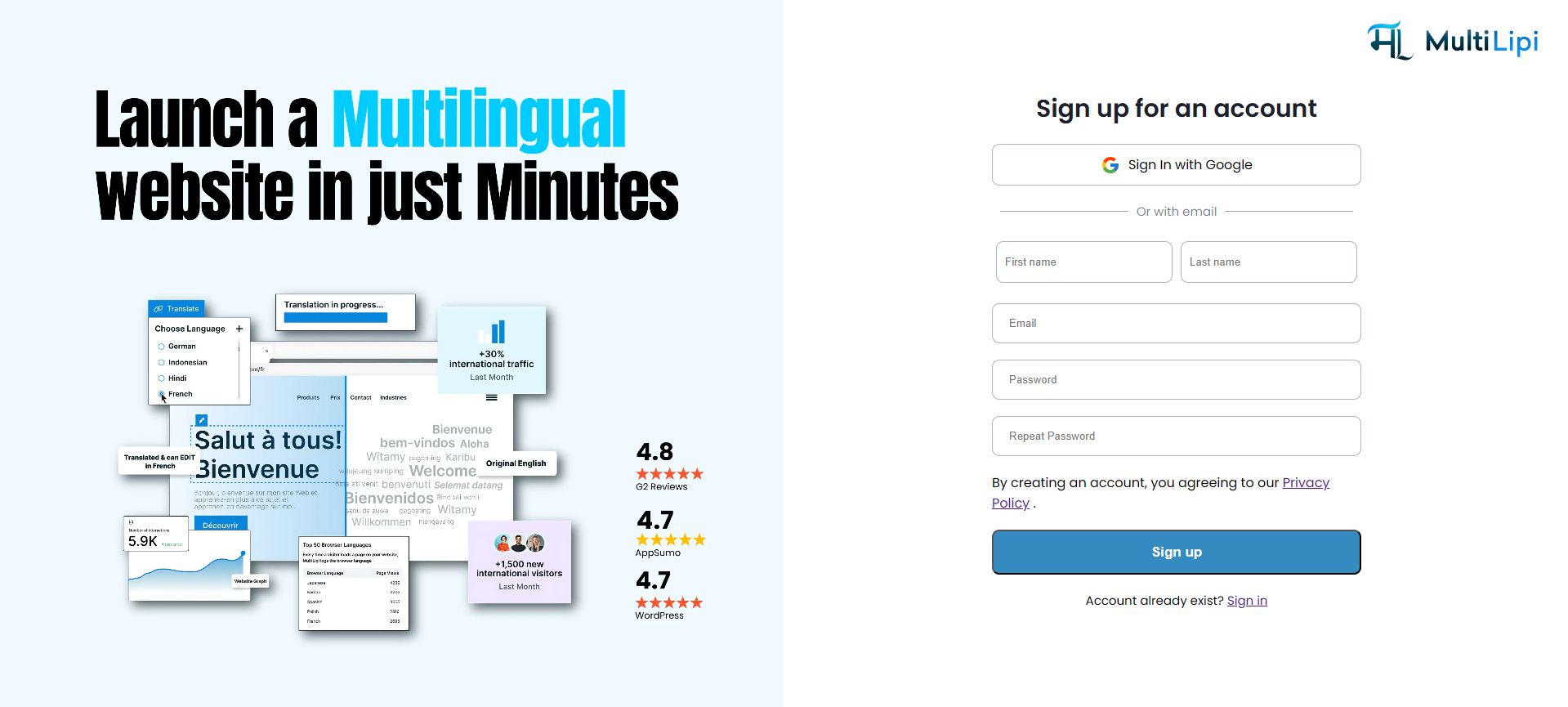
Accedi alla piattaforma MultiLipi. Puoi creare un account sicuro utilizzando la tua email o accedere istantaneamente con Google.
Come fare: Visita dashboard.multilipi.com, inserisci il tuo indirizzo email e crea una password, oppure fai clic su "Accedi con Google" per un accesso immediato.
Crea un Nuovo Progetto
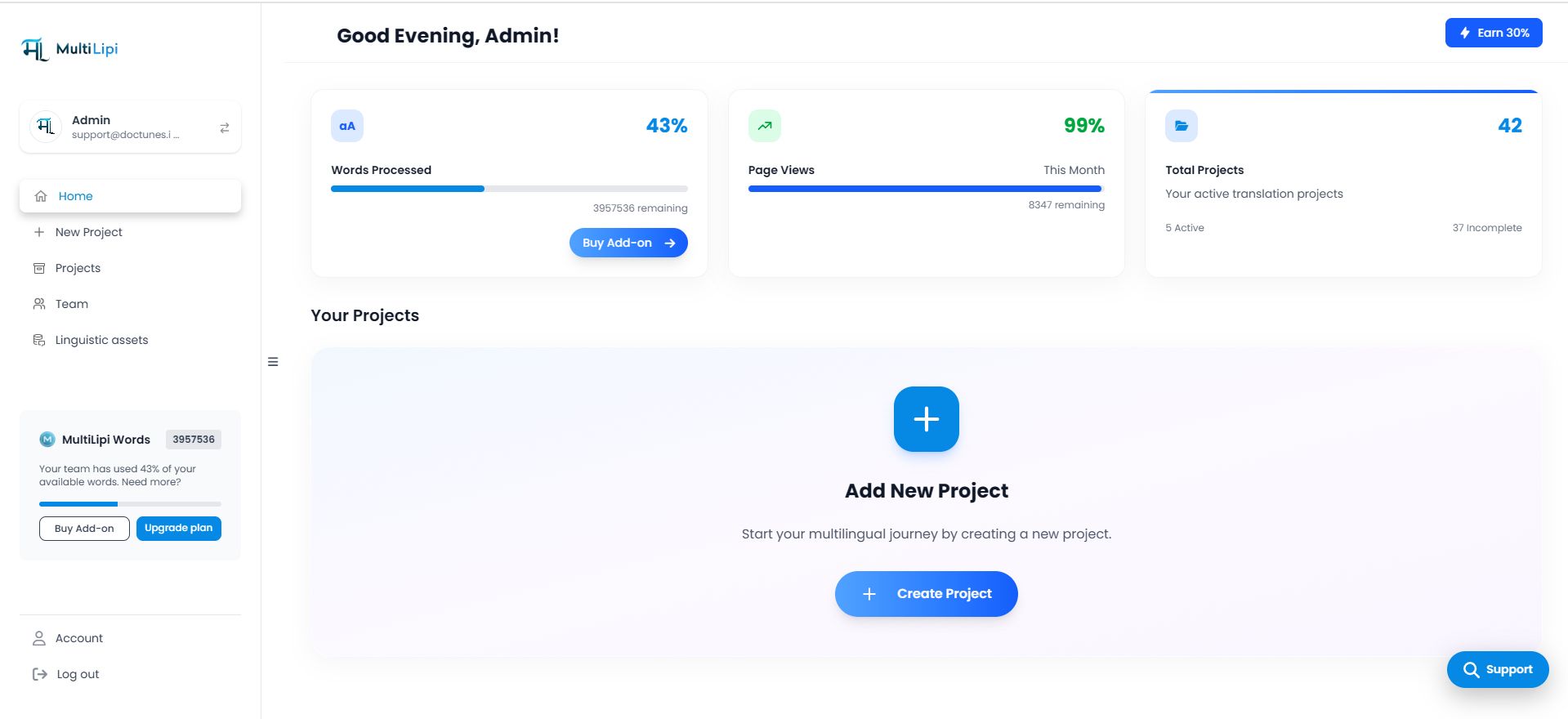
Una volta effettuato l'accesso alla tua dashboard principale, individua la "Aggiungi Nuovo Progetto" scheda o fai clic sul + Nuovo Progetto pulsante nella barra laterale sinistra. Questo avvia la procedura guidata di onboarding.
Come fare: Nella tua dashboard, trova il pulsante o la scheda prominente "+ Aggiungi Nuovo Progetto" e fai clic su di essa per avviare la procedura guidata di configurazione.
Fase 2: La Procedura Guidata di Onboarding
Dettagli Dominio e Marchio
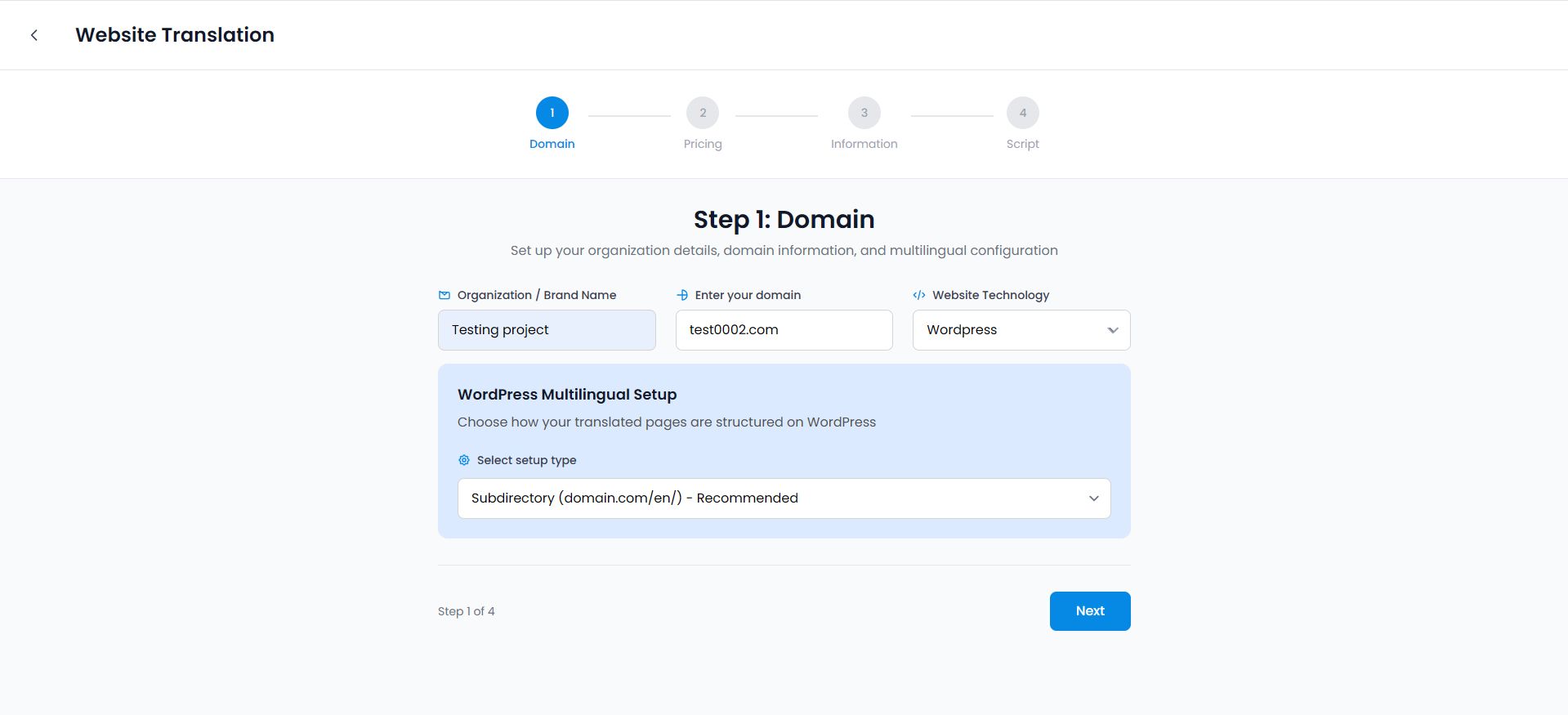
La prima schermata richiede la tua identità principale:
- Organizzazione / Nome del Marchio: Inserisci il nome della tua azienda. Questo viene utilizzato per il "Riconoscimento delle Entità" nei modelli AI.
- Inserisci il tuo dominio: Inserisci il tuo URL (es. test0002.com).
- Tecnologia del Sito Web: Seleziona il tuo CMS (ad es. WordPress, Shopify, React). Questo ci aiuta a personalizzare lo script di integrazione.
- Tipo di configurazione: Consigliamo Sottodirectory (es. domain.com/fr/) per la massima autorità SEO.
Come fare: Compila ogni campo con il nome della tua azienda e l'URL del tuo sito web, seleziona la tua piattaforma web dal menu a discesa e scegli "Sottodirectory" per il tipo di configurazione.
Configurazione Lingua e GEO (Passaggio Critico)
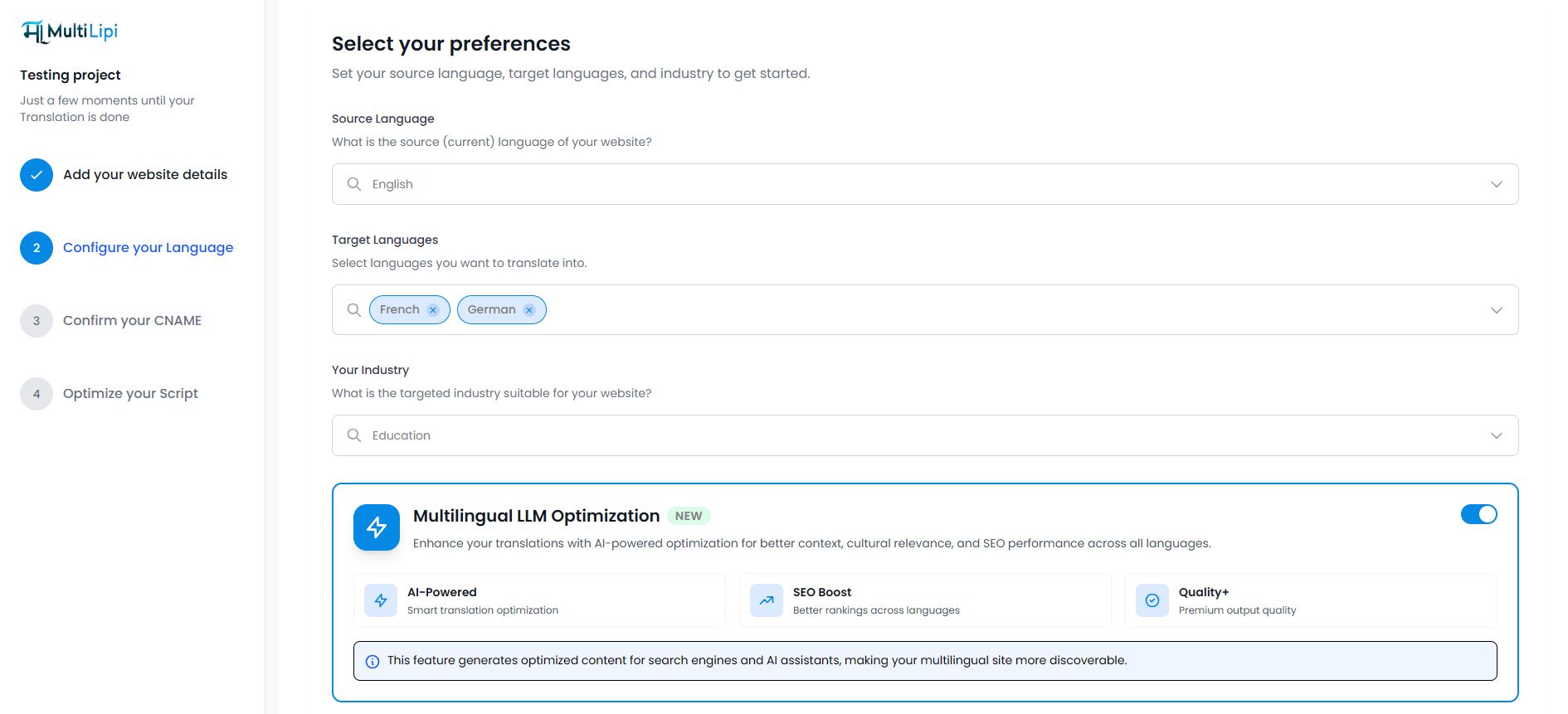
Qui definisci la tua strategia globale:
- Lingua di origine: La lingua attuale del tuo sito web.
- Lingue di destinazione: Seleziona le regioni in cui desideri espanderti (ad es. Francese, Tedesco).
- Il tuo settore: Seleziona la tua nicchia specifica (ad es. Istruzione, SaaS). Questo indica alla nostra IA di utilizzare la terminologia specifica del settore.
Come fare: Seleziona la lingua corrente del tuo sito web dal menu a discesa, quindi fai clic sulle lingue in cui desideri tradurre e scegli il settore della tua attività dall'elenco fornito.
Non perderti la scheda blu in fondo a questo passaggio! Attiva Ottimizzazione LLM multilingue a ACCESO. Questo attiva immediatamente la tua "Infrastruttura GEO", iniettando tag di contesto Schema e RAG-ready leggibili dall'IA.
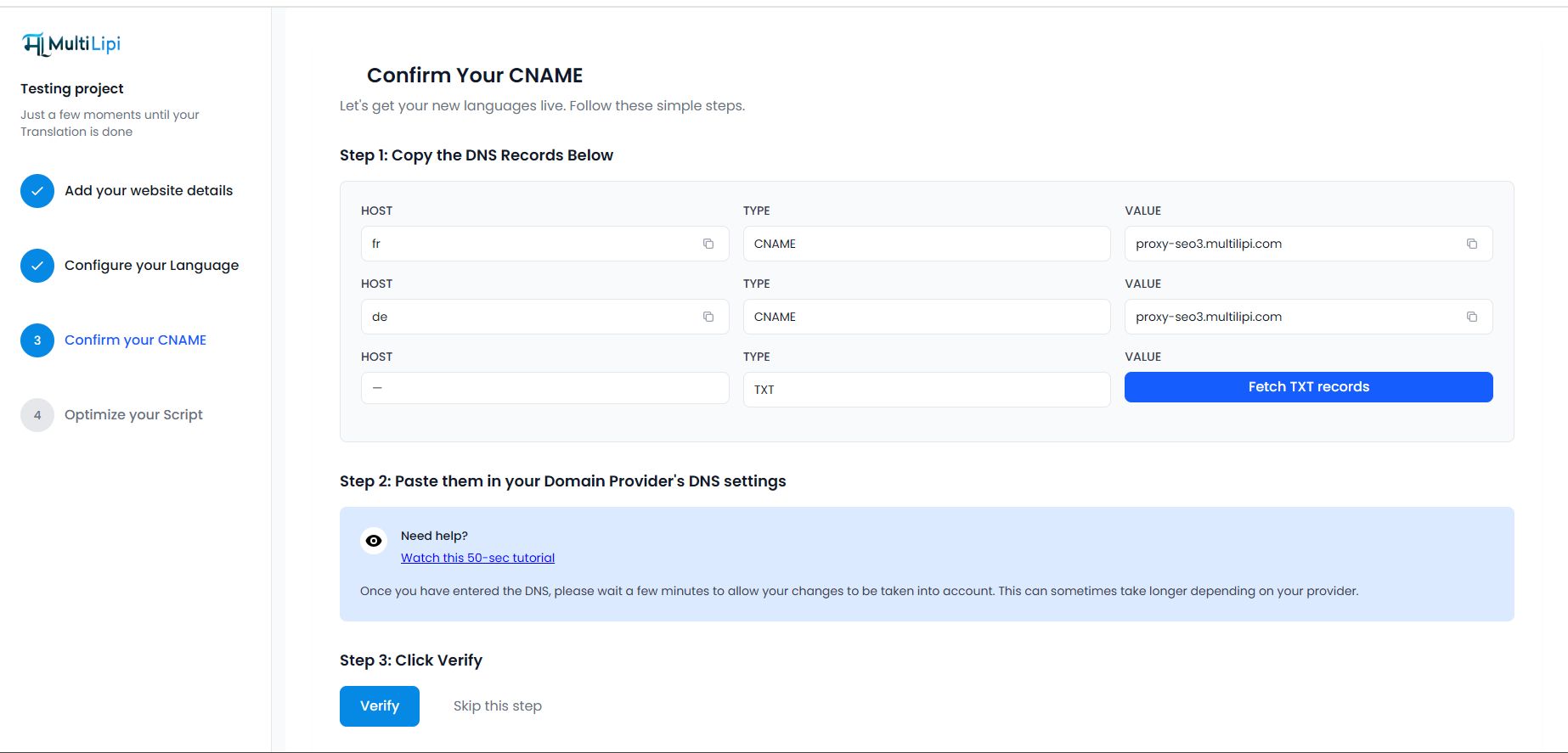
Conferma il tuo CNAME (Configurazione DNS)
Per servire le tue pagine tradotte sul tuo dominio (ad es. fr.tuosito.com), devi verificarne la proprietà:
- Copia Record: La dashboard fornisce record CNAME specifici (Host e Valore).
- Aggiungi al Provider: Accedi al tuo registrar di domini (GoDaddy, Cloudflare, ecc.) e aggiungi questi record.
- Verifica: Fai clic sul blu Verifica pulsante. Una volta verde, la tua CDN globale è attiva.
Come fare: Copia i record CNAME mostrati nella dashboard, accedi alle impostazioni DNS del tuo provider di dominio, incolla lì i record, quindi torna a MultiLipi e fai clic su "Verifica".
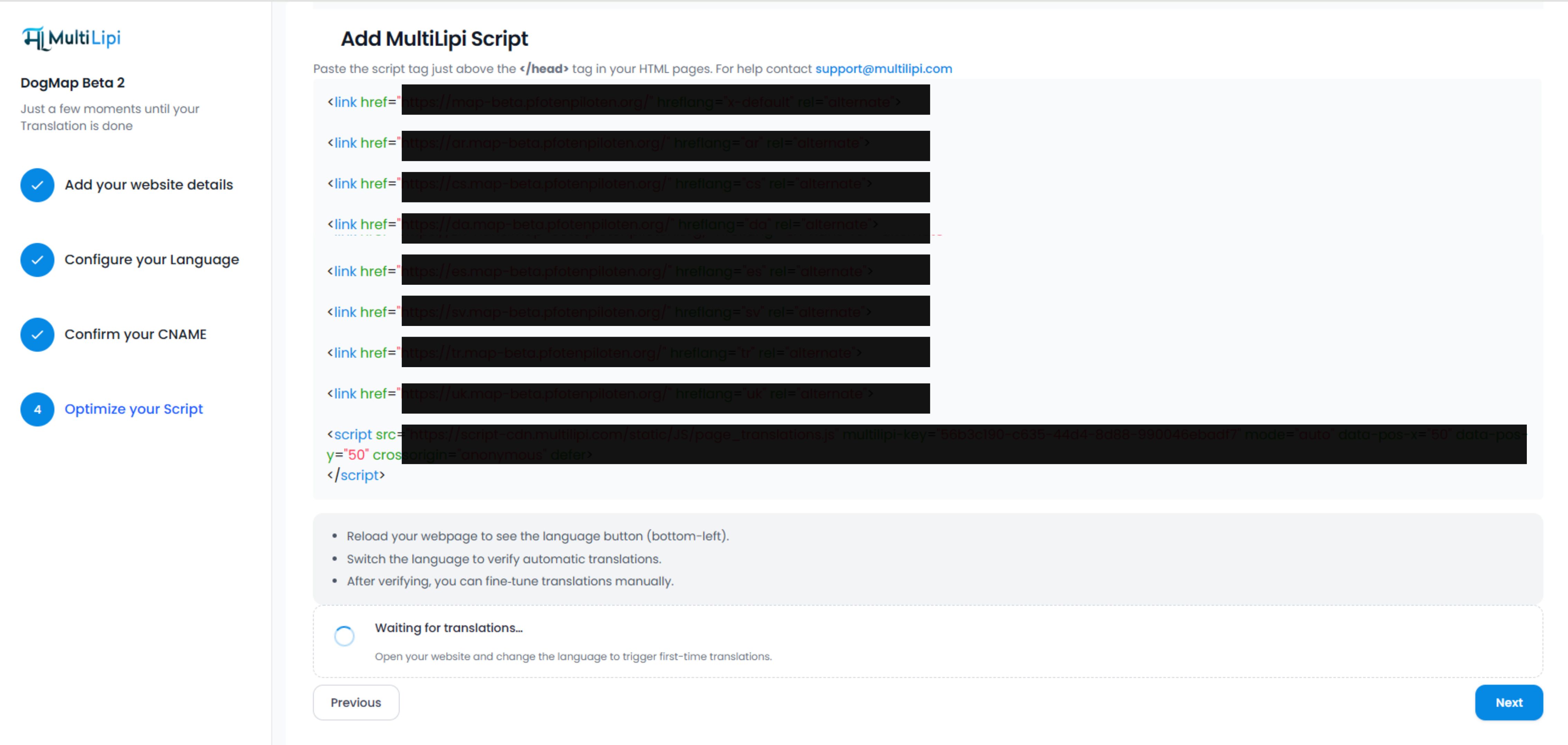
Ottimizza il tuo script
(Se applicabile per il tuo stack) L'ultimo passaggio fornisce uno snippet JavaScript personalizzato. Incollalo nell'intestazione (<head>) del tuo sito web per connettere il tuo sito live al motore MultiLipi.
Come fare: Copia il codice JavaScript visualizzato, quindi incollalo nella sezione <head> dell'HTML del tuo sito web, o segui la guida specifica per piattaforma qui sotto.
Fase 3: La tua Dashboard Progetto e Passaggi Successivi
Congratulazioni! Il tuo sito web è ora attivo sulla Dashboard di MultiLipi. Verrai reindirizzato al tuo Panoramica del Progetto. Ecco una rapida mappa del tuo nuovo spazio di lavoro:
Cos'è: Analisi in tempo reale che mostra Page Views, Parole Tradotte e Consumo di Caratteri.
Usalo per: Monitora l'utilizzo della tua quota e la crescita del traffico.
Guida all'analisi →Cos'è: La tua suite di editing visivo.
Usalo per: Vedi un elenco di tutti gli URL tradotti e affina manualmente i contenuti utilizzando l'
Cos'è: Il centro di comando per la visibilità AI.
Sotto-funzionalità: Schema & llms.txt, File Markdown, GEO Score Checker.
Cos'è: Hub di configurazione globale.
Usalo per: Aggiungi nuove lingue, cambia il contesto del settore o regola la struttura dell'URL.
Cosa succede dopo?
Una volta completati questi passaggi, il motore di MultiLipi inizia immediatamente a scansionare il tuo sito. Entro pochi minuti, le tue pagine tradotte (ad es. fr.tuosito.com) saranno attive.
Il tuo sito è indicizzabile da Google e dai bot AI.
Controlla il tuo Punteggio GEO per vedere quanto bene ti stai posizionando nelle risposte AI.