
La localizzazione di un sito web è uno sforzo collaborativo. Tra project manager che configurano le impostazioni, sviluppatori che verificano il codice e traduttori umani che revisionano il testo, hai bisogno di uno spazio di lavoro centralizzato in cui tutto il tuo team possa operare senza problemi.
MultiLipi ti consente di invitare più utenti nel tuo spazio di lavoro e di assegnare ruoli specifici per mantenere il tuo flusso di lavoro di localizzazione sicuro e organizzato.
Aggiornamento importante: il nuovo flusso di invito in-app
Per migliorare la sicurezza, prevenire il phishing e garantire che gli inviti non vadano mai persi nelle cartelle dello spam, MultiLipi è passato dagli inviti basati su email. Tutti gli inviti del team vengono ora gestiti direttamente all'interno della dashboard di MultiLipi. Questo rende l'intero processo di onboarding più rapido, sicuro e affidabile per qualsiasi dimensione del team.
Prerequisito: L'invitato deve disporre di un account
Un rapido passaggio prima di inviare l'invito.
Poiché gli inviti vengono inviati tramite la dashboard, la persona che stai invitando deve prima creare un account MultiLipi gratuito utilizzando esattamente l'indirizzo email che intendi invitare.
Una volta effettuata la registrazione e il login nella dashboard di MultiLipi, puoi procedere con i passaggi sottostanti.
Fase 1: Come inviare un invito al team
Per proprietari e amministratori di workspace.
Vai alla dashboard del team
Accedi al tuo account MultiLipi. Nel pannello di navigazione a sinistra, fai clic sulla scheda Team per aprire l'area di gestione dei membri del tuo workspace.
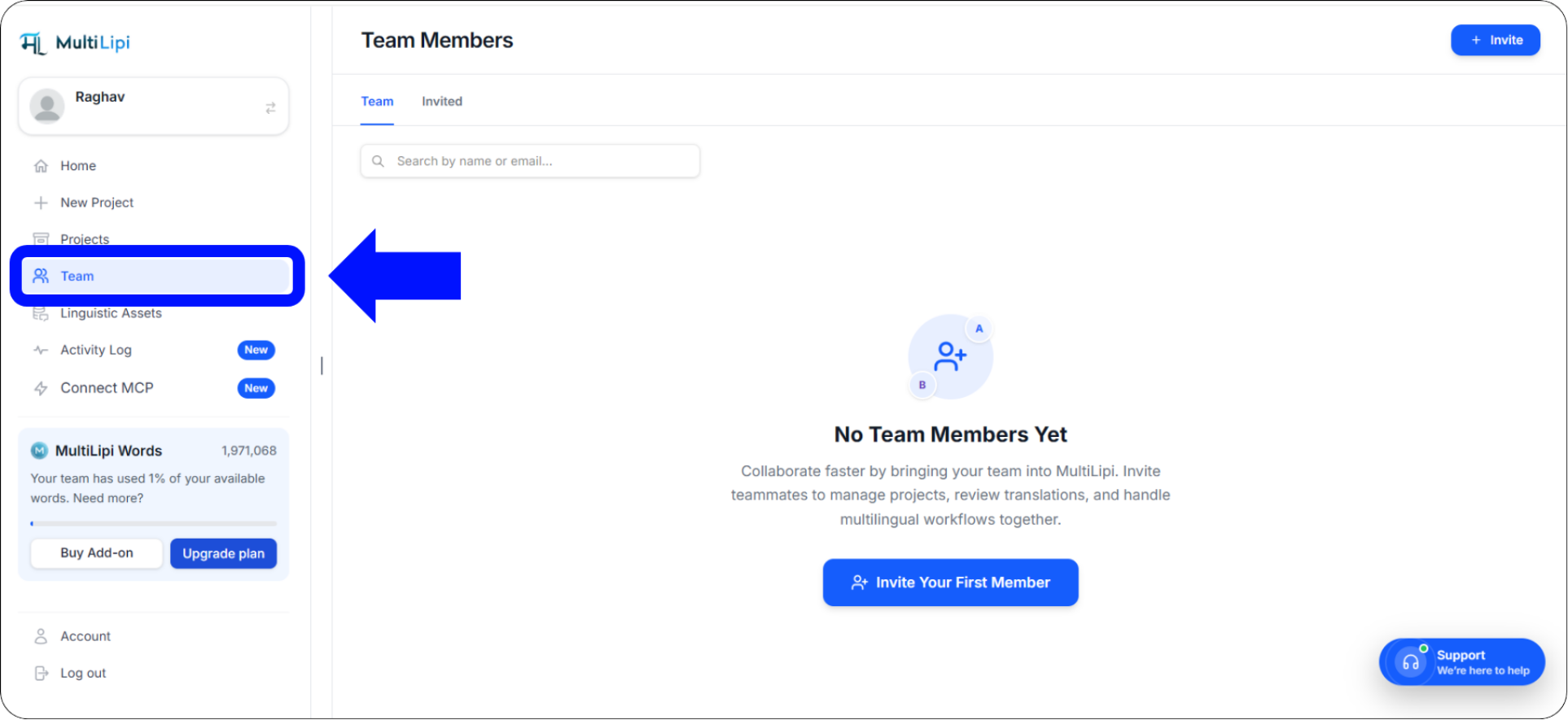
La scheda Team nel pannello di navigazione a sinistra: il tuo hub di gestione dei membri del workspace
Avvia l'invito
Se il tuo workspace è attualmente vuoto, fai clic sul prominente pulsante blu Invita il tuo primo membro al centro dello schermo.
Se hai già dei membri, fai clic sul pulsante + Invita nell'angolo in alto a destra della dashboard del Team.
Configura i dettagli e le autorizzazioni dell'utente
Un "Invita membri del team" Si aprirà una finestra popup. Inserisci i seguenti dettagli:
ID email del membro
Inserisci l'indirizzo email esatto che il tuo collega ha utilizzato per registrarsi a MultiLipi. Anche un solo carattere errato causerà il fallimento dell'invito.
Seleziona ruolo
Scegli il livello di autorizzazione: Amministratore per l'accesso completo o Contributore per l'accesso focalizzato sulla traduzione senza il controllo delle impostazioni dell'account.
Accesso a progetti specifici
Per impostazione predefinita, gli utenti invitati hanno accesso a tutti i progetti nel tuo spazio di lavoro. Spunta questa casella se desideri che accedano solo a siti Web specifici all'interno del tuo account.
Invia l'invito
Rivedi i dettagli un'ultima volta, quindi fai clic sul pulsante blu Invia invito L'invito apparirà istantaneamente all'interno della dashboard MultiLipi del tuo collega, senza bisogno di email.
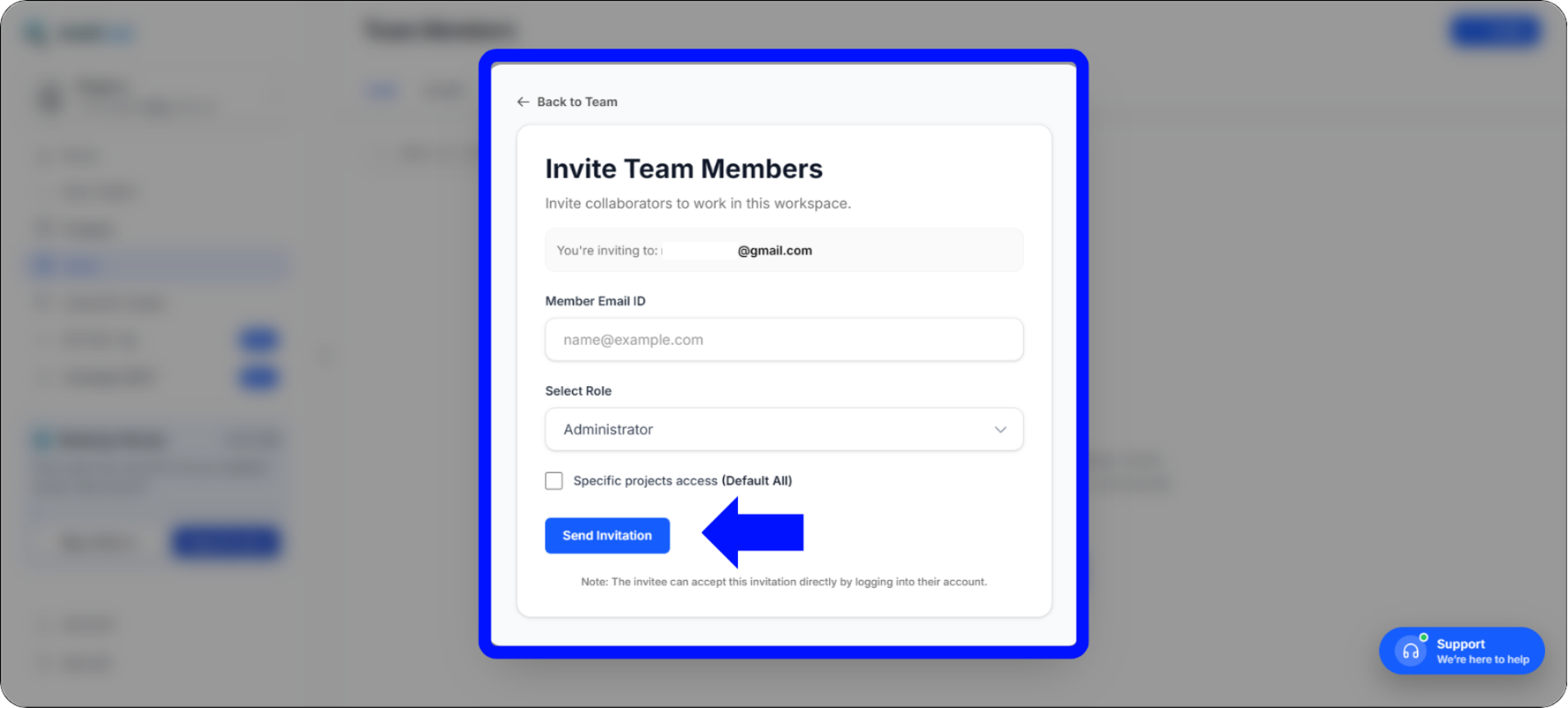
Modale di invito dei membri del team: configura email, ruolo e accesso al progetto prima dell'invio
Fase 2: Come accettare un invito del team
Per il membro del team invitato: bastano solo due clic.
Se sei il membro del team che riceve l'invito, unirsi allo spazio di lavoro richiede solo due clic — nessuna conferma via email, nessuna scadenza del link, nessuna ricerca nella cartella spam.
Controlla le notifiche della tua dashboard
Accedi al tuo account MultiLipi. Guarda il pannello di navigazione a sinistra: vedrai un badge di notifica rosso con un numero accanto alla Team scheda. Questo badge indica inviti allo spazio di lavoro in sospeso in attesa della tua risposta.
Accetta l'invito
Clicca sul Team scheda. Nella parte superiore dello schermo, vedrai un banner blu etichettato Inviti allo spazio di lavoro — mostra chi ti ha invitato e il ruolo che ti è stato assegnato.
Fai clic sul blu Unisciti pulsante per connetterti istantaneamente allo spazio di lavoro e ottenere l'accesso ai progetti assegnati.
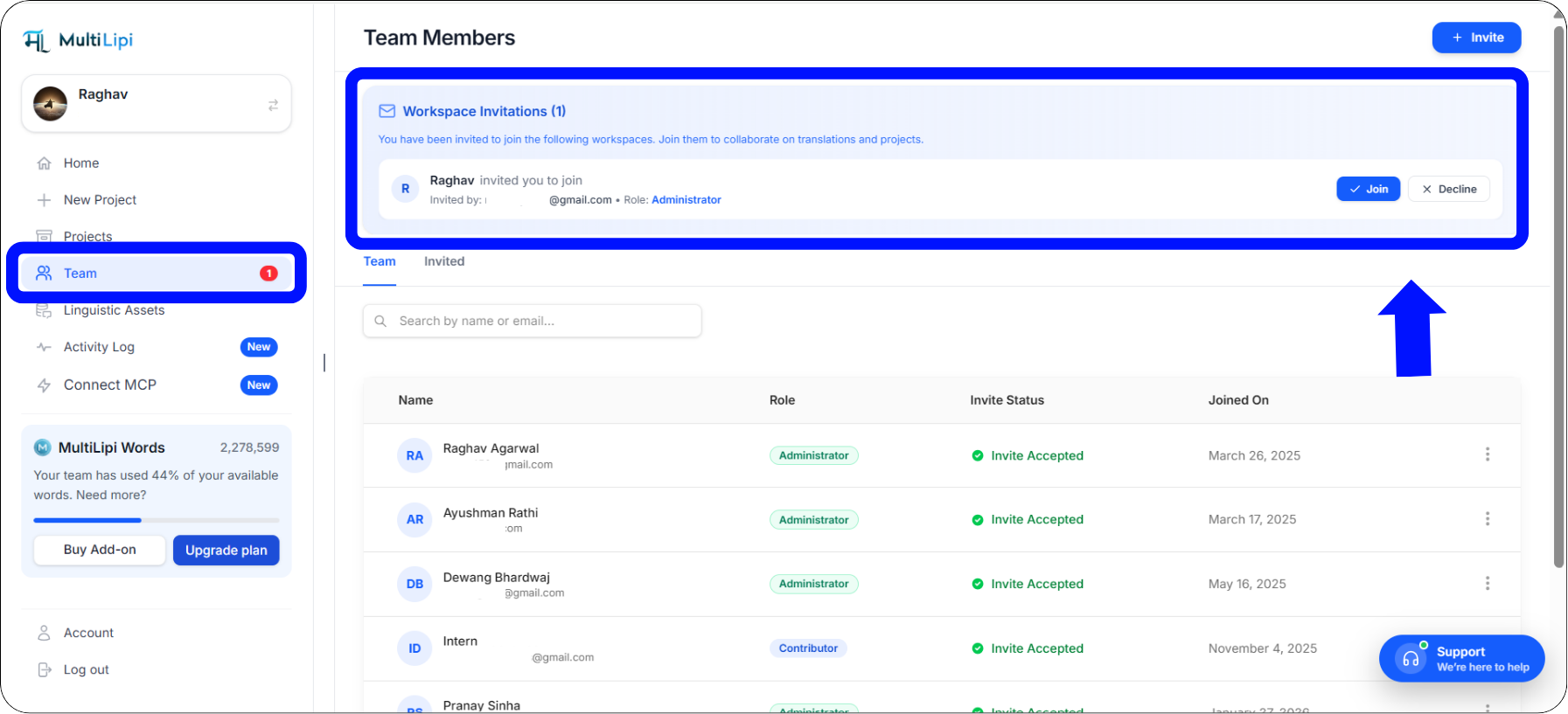
Il banner degli Inviti allo Spazio di Lavoro — accetta con un solo clic sul pulsante Unisciti
Fase 3: Modifica dei Ruoli o Rimozione dei Membri
Gli amministratori mantengono sempre il controllo completo.
Man mano che il team si espande o le responsabilità cambiano, gli Amministratori dello Spazio di Lavoro mantengono controllo completo il controllo su chi ha accesso alla piattaforma. Puoi modificare il ruolo di un utente o rimuoverlo completamente in qualsiasi momento — le modifiche hanno effetto immediato.
Vai alla scheda Team per visualizzare l'elenco attivo dei membri attuali.
Individua nell'elenco il membro del team che desideri modificare.
All'estremità destra della sua riga, fai clic sui tre punti verticali (⋮) per aprire il menu delle azioni.
Seleziona Modifica per modificare il ruolo assegnato o l'accesso al progetto, oppure seleziona Elimina per revocare immediatamente il loro accesso al tuo spazio di lavoro.
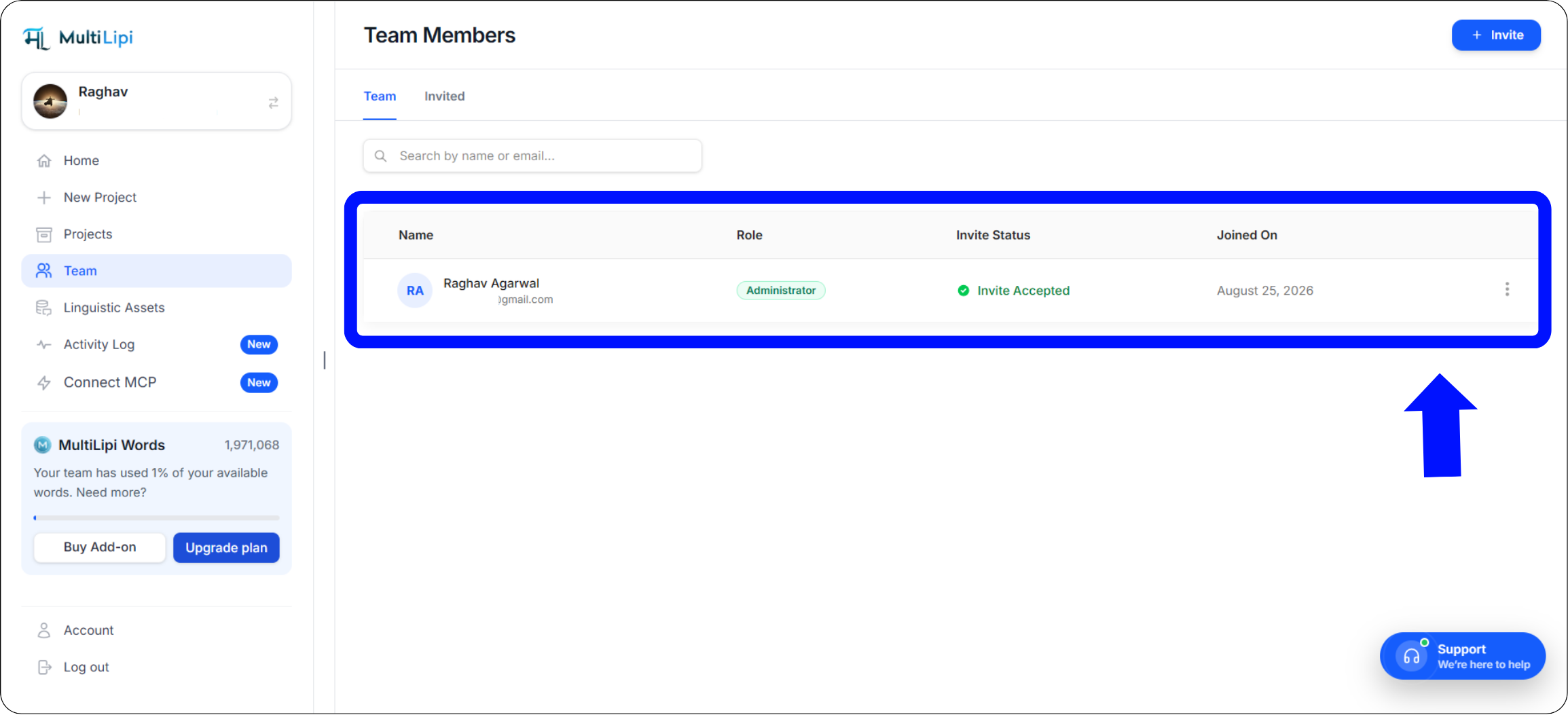
Il menu delle azioni a tre punti su ogni riga di membro — Modifica ruolo/accesso o Elimina per revocare immediatamente
Migliori Pratiche per la Gestione del Team
Mantieni il tuo spazio di lavoro sicuro e la tua pipeline organizzata.
Applica il Principio del Minimo Privilegio
Quando assegni i ruoli, concedi sempre ai membri del team il livello minimo di accesso necessario per svolgere il loro lavoro, e nulla di più.
Traduttori umani e appaltatori esterni
Accesso completo a Editor Visivo e alle Liste di Traduzione, senza la possibilità di modificare le impostazioni del dominio, le configurazioni DNS o i dettagli di fatturazione.
Project manager principali e responsabili tecnici
Accesso completo allo spazio di lavoro, incluse le impostazioni di progetto, la configurazione DNS, la fatturazione e la gestione del team. Riserva questo accesso solo a responsabili interni di fiducia.
Risoluzione dei problemi comuni relativi agli inviti
Soluzioni rapide per gli scenari di onboarding del team più frequenti.
"Il mio collega ha effettuato l'accesso, ma non visualizza l'invito."
Ciò si verifica quasi sempre quando c'è un errore di digitazione nell'indirizzo email, o quando il membro del team si è registrato utilizzando un alias di posta diverso (ad esempio, usando un account Gmail personale anziché quello aziendale). Verifica l'indirizzo email esatto che ha utilizzato per registrare il proprio account MultiLipi e invia nuovamente l'invito a quello specifico indirizzo.
"Come posso annullare un invito in sospeso?"
Se hai inviato un invito alla persona sbagliata o hai assegnato il ruolo errato, torna semplicemente alla scheda del tuo Team. Individua l'utente in sospeso con lo stato "Invitato", fai clic sui tre puntini verticali accanto al suo nome e seleziona Elimina per revocare l'invito prima che possa accettarlo.
"Un membro può appartenere a più aree di lavoro?"
Sì! Traduttori freelance, specialisti SEO o partner di agenzia possono utilizzare un unico accesso a MultiLipi per accettare inviti da diverse aree di lavoro dei clienti. Possono passare facilmente da un'area di lavoro all'altra dalla dashboard principale del loro account senza bisogno di password separate.
Riepilogo: Ottimizzazione del flusso di lavoro globale
Collaborazione di team sicura, veloce e organizzata, integrata nativamente.
La gestione di un sito web multilingue non dovrebbe richiedere infinite e-mail di riscontro, fogli di calcolo disordinati o la condivisione di password di account sensibili. Utilizzando la dashboard centralizzata di Gestione Team di MultiLipi, stabilisci un ambiente sicuro e organizzato in cui gli sviluppatori possono gestire le integrazioni DNS tecniche, mentre linguisti e professionisti del marketing si concentrano esclusivamente sul perfezionamento delle traduzioni nel Editor Visivo.
La nostra transizione a un flusso di invito interamente in-app garantisce che l'onboarding del tuo progetto rimanga altamente sicuro, immune ai filtri antispam aggressivi delle e-mail, e incredibilmente veloce: dall'invito al collaboratore attivo in pochi secondi.
Pronto a riunire il tuo team di localizzazione?
Vai alla scheda Team oggi stesso e invita il tuo primo collaboratore. Esplora queste risorse per massimizzare la produttività del tuo team in ogni mercato:
Hai bisogno di aiuto con una configurazione del team personalizzata? Per spazi di lavoro di livello aziendale con requisiti di ruolo complessi o esigenze di SSO, contatta il supporto di MultiLipi — il nostro team ti aiuterà a impostare la struttura di accesso corretta per la tua organizzazione.