
Translating a website involves more than just swapping out words. Different languages — such as German, French, or Spanish — often feature longer text strings or varying grammatical structures. When translated, these variations can alter your site's layout, causing text to overflow, buttons to break, or headers to misalign.
To solve this, MultiLipi's Editor Visivo includes advanced visual styling controls. This feature lets you perform manual translation corrections while simultaneously managing the visual appearance of individual page elements in real-time — all without writing custom code from scratch.
Advantages of Visual Style Customization
Full control over layout and copy in one unified interface.
Translation + Styling in a Single Workflow
Combining text translation with visual styling inside a single interface gives your team ultimate control over your global web pages. No context-switching between translation dashboards and code editors — everything lives in one point-and-click surface. This is a core part of delivering the polished, native-feeling experience that drives real SEO multilingue results.
Prevent Layout Distortion
Easily shrink font sizes or adjust container widths for languages that naturally occupy more character space — stopping text overflow and broken button layouts before they reach your visitors.
Maintain Strict Brand Aesthetics
Fine-tune text colors, background hex codes, and element dimensions directly on the localized page to match your exact brand guidelines — ensuring every language version looks identical to your primary site.
Zero Code Friction
Make precise CSS-level modifications using an intuitive visual sidebar instead of digging through backend stylesheet code. Advanced tweaks are still available via the Raw CSS tab for developers who need them.
Step-by-Step Guide: Style & Translate Elements
A seamless, point-and-click process on your live page preview.
Open the Visual Editor
Accedi al tuo Dashboard MultiLipi and select your active project.
Navigate to the left-hand navigation panel and click on URL.
Locate the page you want to update, move your cursor to the Editor Visivo column, and click the Monitor/Screen icon to launch the interactive page preview.
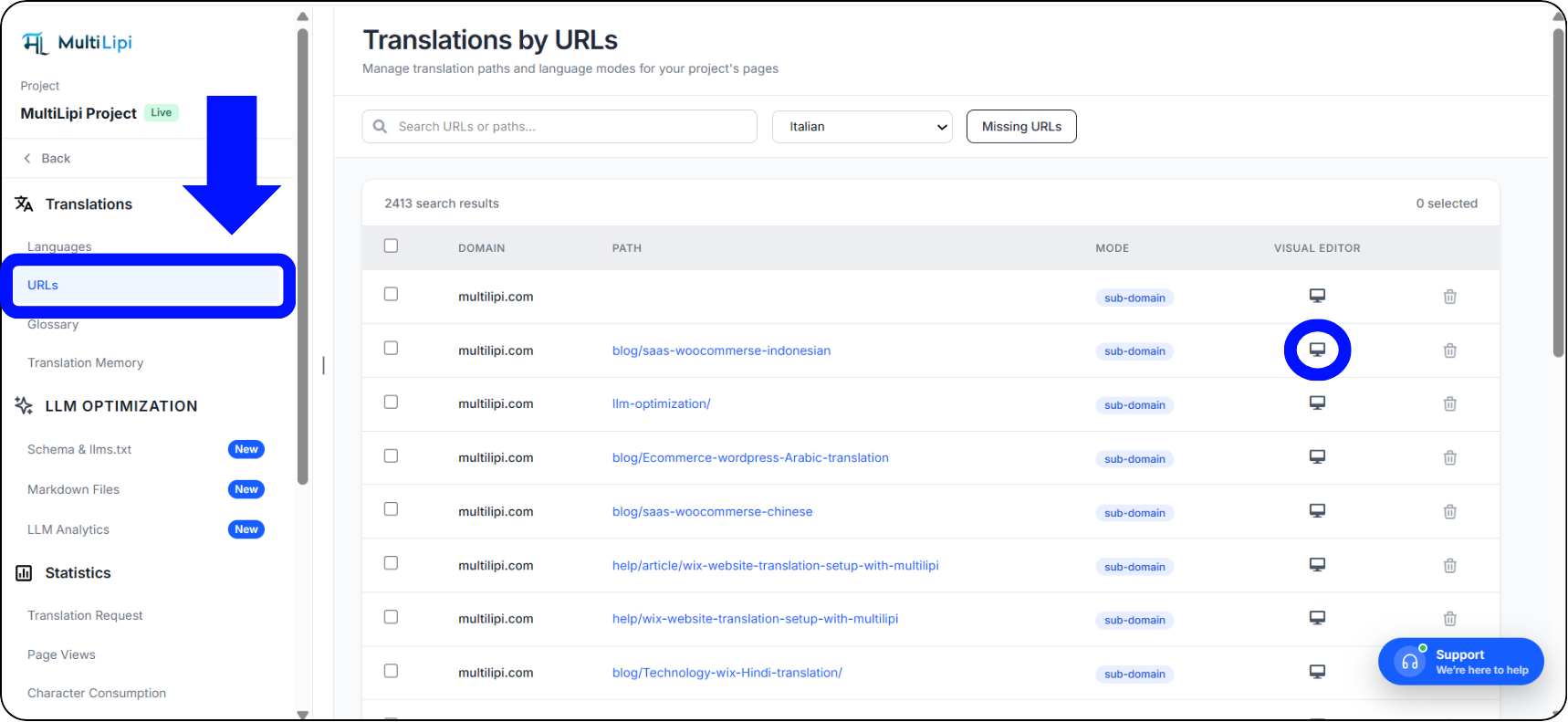
URLs panel — click the Monitor icon on the right to open the Visual Editor
Select the Target Element
Browse your live website preview inside the editor.
Click directly on the specific text block, heading, or button you wish to modify. A selection boundary will outline the element, and the configuration panels will open.
Update Translation & Text Content
In the central translation modal, edit the localized text manually or click Generate AI Suggestions if you need alternative phrasing.
Use project glossaries or translation memory overrides to ensure precise vocabulary consistency across your entire site.
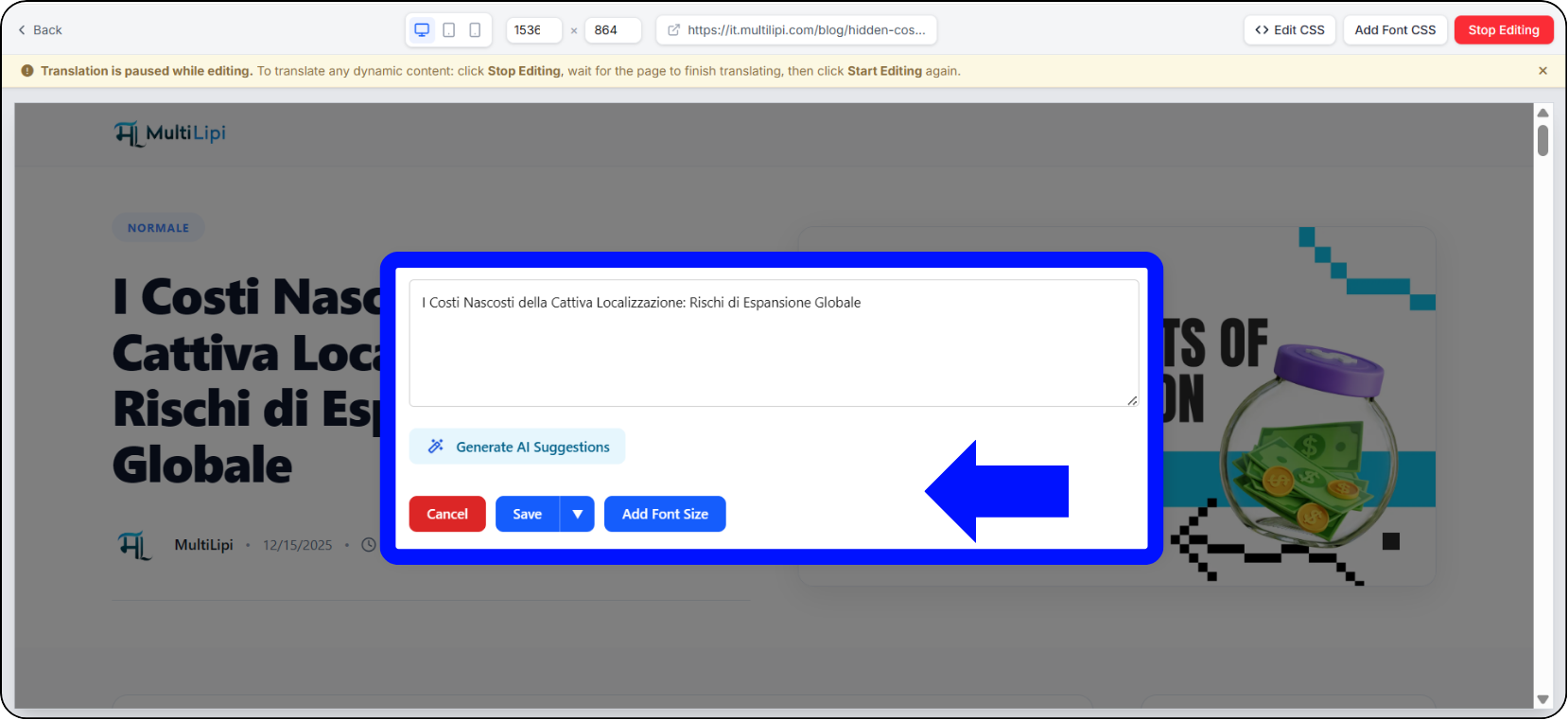
Translation modal — edit manually or generate AI suggestions, with glossary & memory support
Adjust Visual Styling Options
Look at the right-hand CSS Personalizzato sidebar panel. Under the Visual Style tab, you can view the active element's selector path (e.g., main#main > section > div > div > h1). Modify the layout properties to fit your translated text perfectly:
Width & Height: Adjust container dimensions or set them to auto to let the translated content breathe naturally.
Font Size: Scale text up or down (in pixels) to prevent line-wrapping issues common in German or Russian translations.
Text Color & Background Color: Input exact hex codes (e.g., #0b1736) to change color properties and keep your localized pages on-brand.
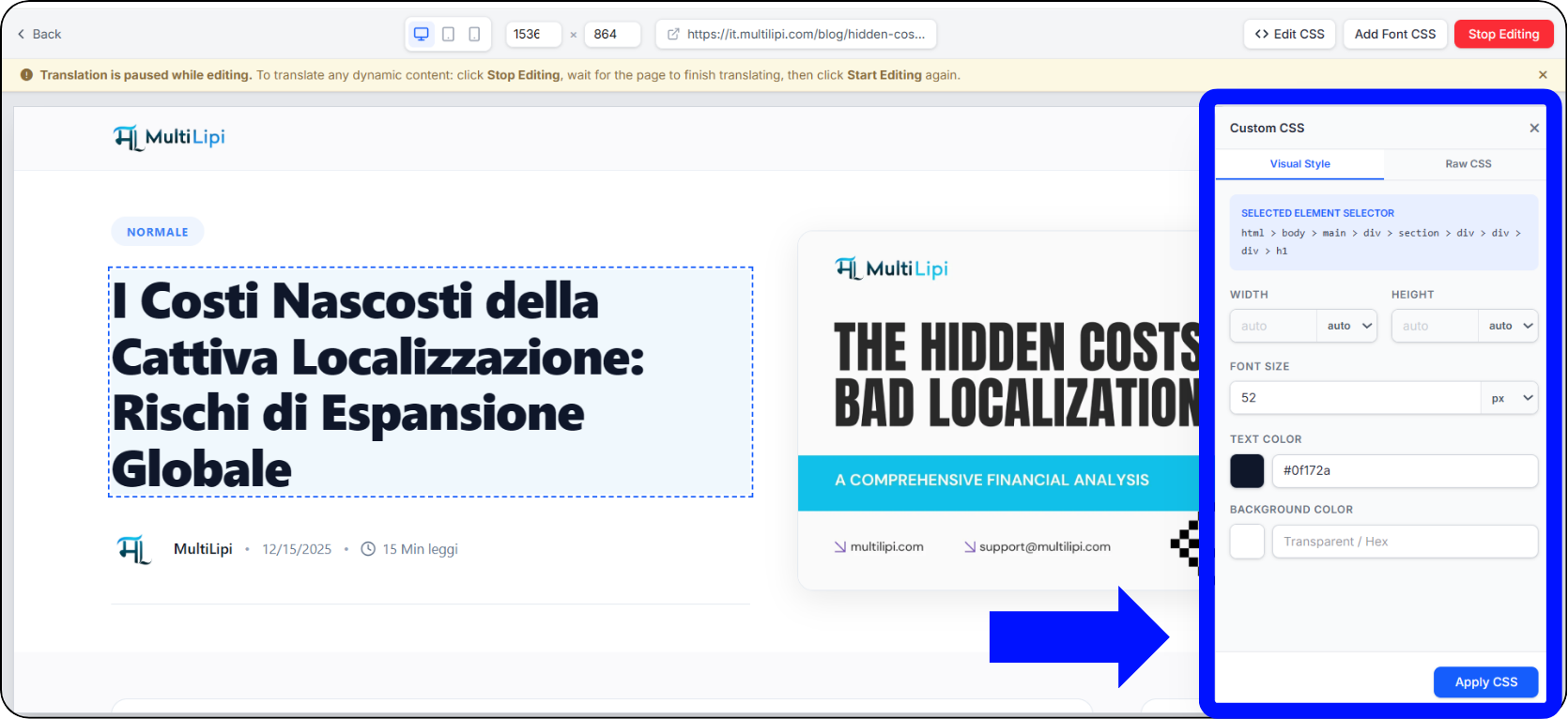
Custom CSS sidebar — Visual Style tab with width, font size, and color controls
Apply and Save Changes
Once your typography and text corrections look correct, click the blue Apply CSS button at the bottom of the right-hand panel.
Fai clic Salva on the text translation modal to lock in your changes and push the customized style live to your international visitors.
Your styling changes are scoped to the translated version only — your primary language page remains completely untouched.
Pro-Tip: Using the Raw CSS Tab for Advanced Tweaks
For developers who need full stylesheet-level control.
Visual Style Tab vs. Raw CSS Tab
While the Visual Style panel handles everyday padding, sizing, and color changes instantly, developers or advanced users can switch to the Raw CSS tab right next to it.
This allows you to write custom inline style rules or media queries for specific localized viewports, ensuring your global pages look flawless across desktop, tablet, and mobile devices alike — without touching your primary codebase.
Visual Style Tab
- •Padding & margin sliders
- •Font size pixel controls
- •Hex color pickers
- •Width / height inputs
- •Best for: non-developers & quick fixes
Raw CSS Tab
- •Custom inline style rules
- •Media queries per viewport
- •Pseudo-class selectors
- •Complex multi-property overrides
- •Best for: developers & edge cases
Perfect Your Global UI Today
Great localization should look native, seamless, and completely intentional.
By pairing automated translations with real-time visual adjustments, you ensure your international pages look just as polished as your primary site. Jump into your Dashboard MultiLipi, launch the Visual Editor, and start perfecting your global layout today.
Explore Related Tools & Guides
Running into complex layout issues? If certain elements need custom solutions beyond standard styling controls, contatta il supporto di MultiLipi — our team can assist with advanced CSS configurations for your specific template or framework.