
La collaborazione è essenziale per la scala globale, ma la sicurezza dei dati è fondamentale. Il MultiLipi di Spazio di lavoro del team consente di concedere l'accesso a traduttori, sviluppatori e project manager senza condividere credenziali di accesso sensibili. È possibile assegnare autorizzazioni granulari , garantendo che i membri del team interagiscano solo con i progetti e gli strumenti specifici richiesti dal loro ruolo.
Questo schema copre il ciclo di vita della gestione degli utenti: Provisioning , Controllo , e Revoca degli accessi .
Controllo degli accessi basato sui ruoli (RBAC)
Non condividere mai le credenziali principali. Invece, crea account individualizzati con autorizzazioni personalizzate in base alle responsabilità di ciascun utente. Ciò garantisce audit trail completi e la possibilità di revocare istantaneamente l'accesso quando i membri del team cambiano ruolo.
1. Accesso alla directory del team
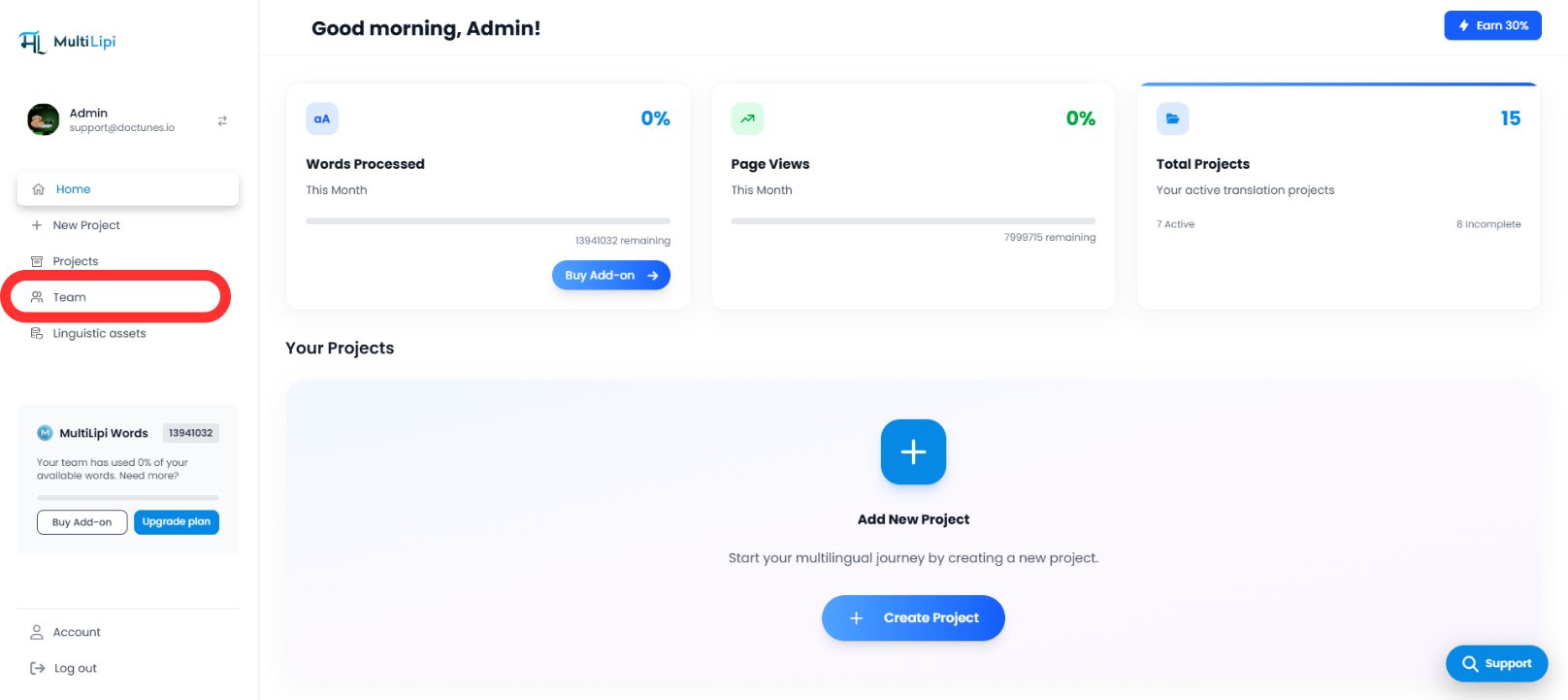
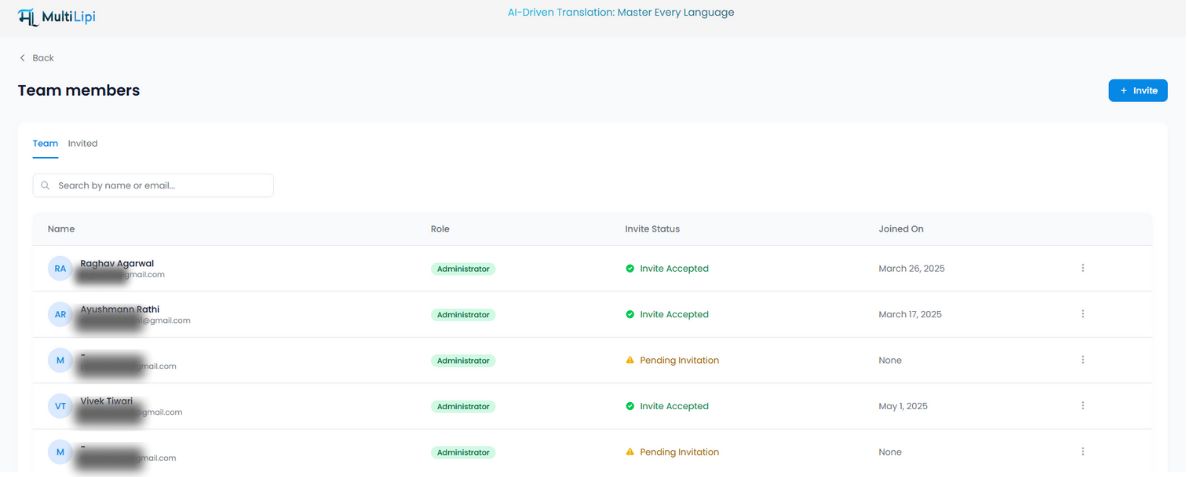
La scheda Team funge da centro di comando centrale per tutte le autorizzazioni degli utenti.
Navigazione
Dalla barra laterale della dashboard di MultiLipi, seleziona Team .
Vista di controllo
Visualizzerai una tabella unificata che elenca tutti gli utenti attivi, i loro ruoli assegnati, l'ambito di accesso (domini specifici) e lo stato attuale ( Attivo vs. Invito in sospeso ).
2. Configurazione dell'accesso (Invito dei membri)
Per integrare un nuovo collaboratore:
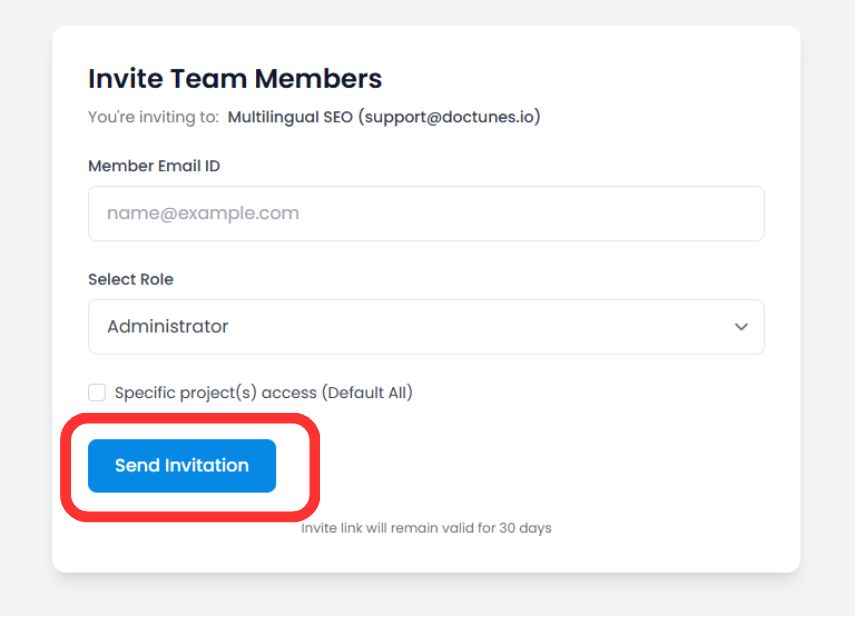
Avvia invito
Fai clic sul Invita pulsante nell'angolo in alto a destra dello spazio di lavoro.
Definisci credenziali
Inserisci l'indirizzo email aziendale dell'utente.
Assegnazione dei ruoli
Seleziona il livello di privilegio appropriato (ad es., Amministratore per il controllo completo, Contributore solo per la modifica delle traduzioni).
Ambito del progetto (Facoltativo)
Limita l'utente a domini specifici (ad es., assegna "Traduttore A" solo al progetto tedesco).
Distribuisci invito
Fai clic Invita tramite email .
Nota sulla sicurezza
Il link di invito sicuro scade automaticamente tra 30 giorni per impedire accessi non autorizzati da link obsoleti.
3. Gestione del ciclo di vita degli accessi
La governance è un processo continuo. È possibile modificare o revocare i permessi istantaneamente man mano che la struttura del team cambia.
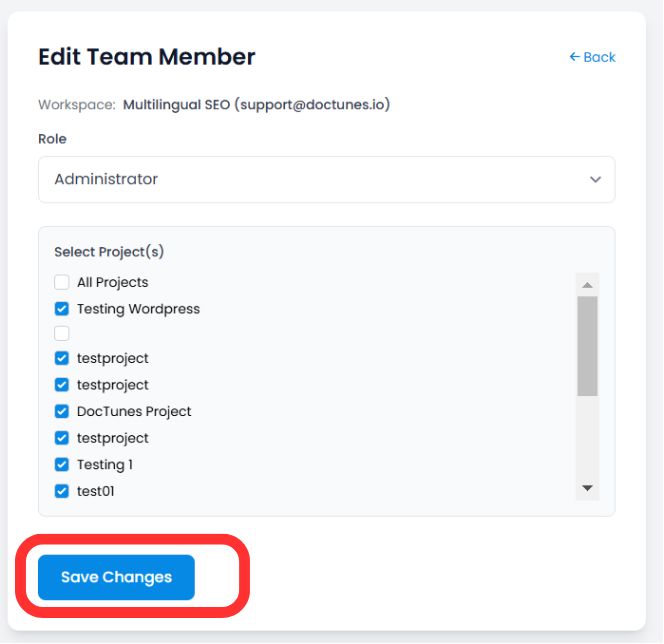
Modifica dei ruoli (La funzione "Modifica")
Se un utente necessita di privilegi elevati o dell'accesso a un nuovo progetto:
Individua l'utente nel Team tabella.
Fai clic sul Icona Tre Punti (⋮) nella colonna Azioni.
Seleziona Modifica .
Aggiorna il loro Ruolo o Assegnazione del Progetto e fai clic su Salva Modifiche . I nuovi permessi vengono applicati immediatamente.
Revoca dell'Accesso (Offboarding)
Quando un membro del team lascia l'azienda o un contratto termina, metti in sicurezza il suo account immediatamente:
Passaggio 1
Fai clic sul Icona Cestino/Rimuovi nella colonna Azioni.
Passaggio 2
Conferma la rimozione.
Impatto
La sessione dell'utente viene terminata e perde l'accesso alla dashboard istantaneamente .
Riepilogo: Migliori Pratiche per la Collaborazione
| Azione | Migliore Pratica |
|---|---|
| Assegnazione dei ruoli | Usa il Principio del Minimo Privilegio . Concedi l'accesso da Amministratore solo a stakeholder di fiducia. |
| Delimitazione del Progetto | Isola le agenzie esterne su progetti specifici per impedire loro di visualizzare dati non correlati. |
| Audit Periodici | Controlla la scheda Team mensilmente per rimuovere utenti inattivi o inviti in sospeso. |
🔒 Sicurezza su Scala: Implementando un RBAC granulare, ti assicuri che le tue operazioni di traduzione possano scalare a livello globale senza compromettere l'integrità dei dati o esporre informazioni di progetto sensibili a membri del team non autorizzati.