

Scale your visual development globally without backend code.
Webflow is the premier platform for visual development, but native localization can be complex and expensive. MultiLipi integrates directly into Webflow's architecture via a single script injection, instantly transforming your static pages and CMS collections into a multilingual infrastructure with full SEO indexing.
This guide details the integration process using Webflow's Codice personalizzato feature.
1. Prerequisiti per il dispiegamento
Before beginning, ensure your environment meets the requirements:
Webflow Site Plan
You must be on a Basic Site Plan (or higher) to unlock the "Custom Code" feature.
Chiavi API MultiLipi
Trova questo nella tua Dashboard sotto Impostazioni > Generale .
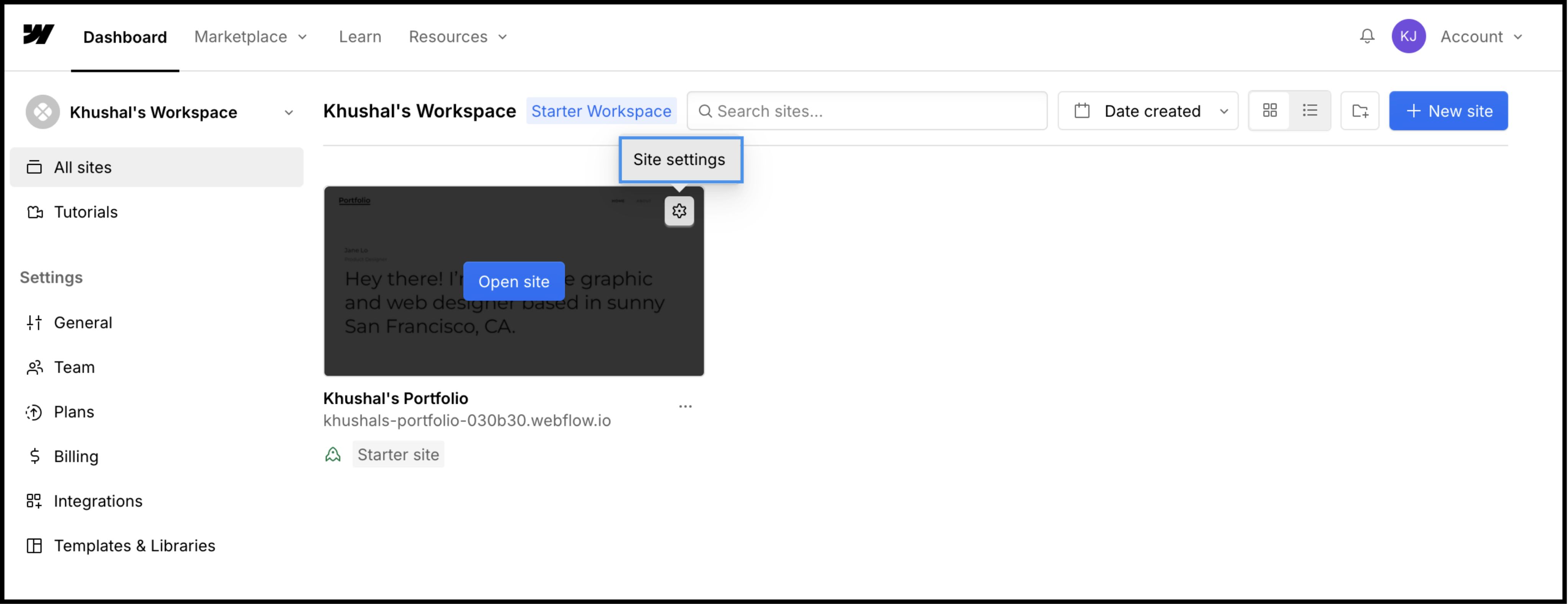
2. Step 1: Access Site Architecture
We will inject the translation engine into the global header to ensure it persists across all pages and CMS templates.
- 1
Accedi al tuo Webflow Dashboard .
- 2
Locate your project card and click the Settings Icon (⚙️) (or select Impostazioni del sito from the Designer menu).
- 3
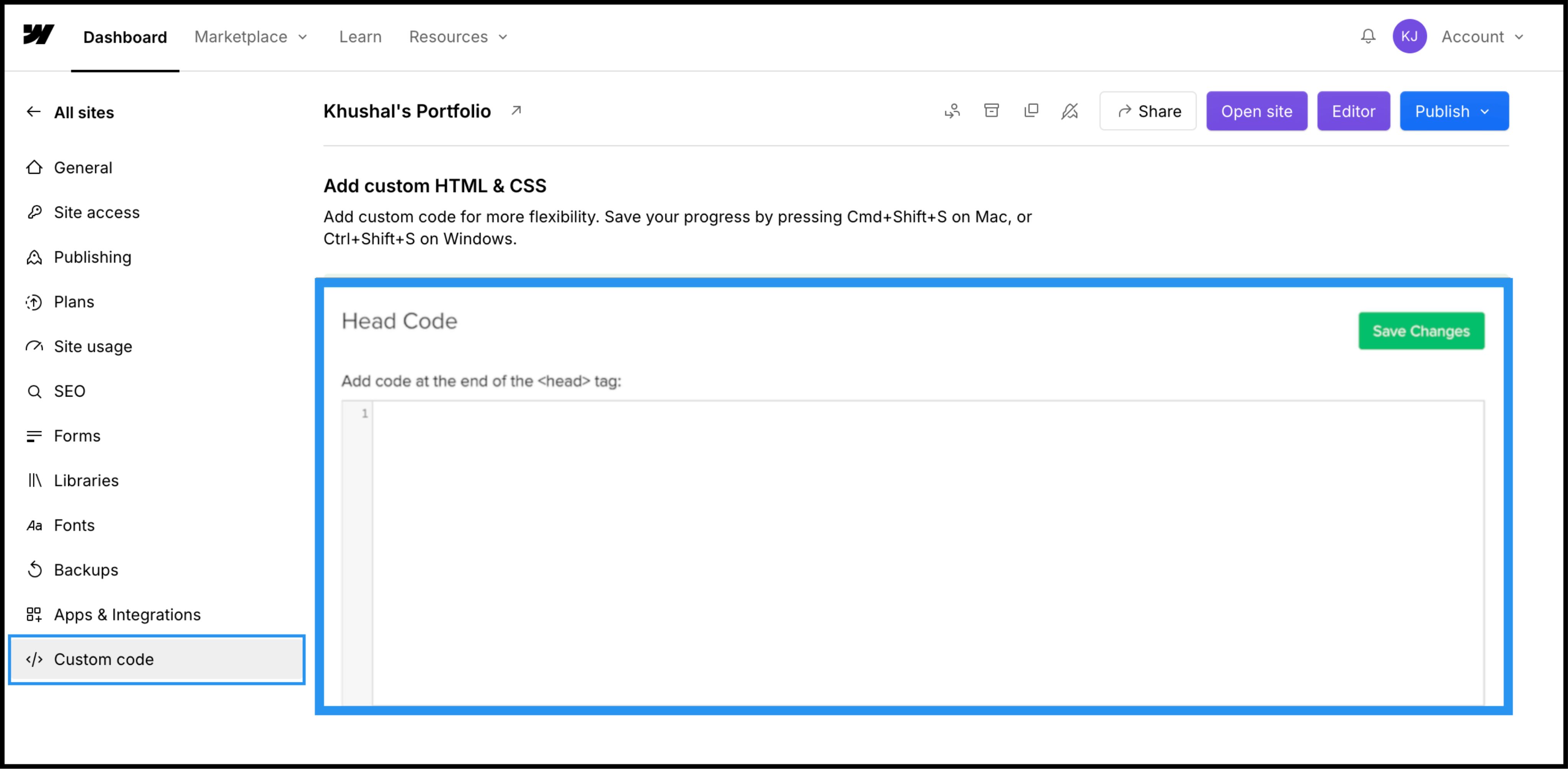
Naviga fino al Codice personalizzato tab in the top navigation bar.
3. Passo 2: Inietta lo script di infrastruttura
- 1
Scroll down to the field labeled "Head Code".
- 2
Nota: Do not place this in "Footer Code," as it will delay the translation loading and cause a "flash of untranslated content."
Azione: Incolla lo script di connessione
Paste the following connection script into the field:
<script
  src="https://multilipistorage.blob.core.windows.net/static/js/page_translations.js"
  key="YOUR_API_KEY_HERE"
></script>
⚠️Configurazione critica
- • Sostituire
YOUR_API_KEY_HEREcon la vera API Key copiata dalla tua dashboard MultiLipi. - • Click the green Salva modifiche nell'angolo in alto a destra.
4. Step 3: Deployment & Verification
Webflow does not run custom code in the Designer view. You must publish to see the engine in action.
Pubblicare
Fare clic sull'icona blu Pubblicare button and select your production domain (or .webflow.io staging domain).
Verifica
Open the live link.
Controllo visivo
The Language Switcher should appear in the bottom-left corner.
CMS Check
Navigate to a CMS Collection page (e.g., /blog/post-1) and switch languages to ensure dynamic content translates correctly.
Protocollo di risoluzione dei problemi
- • Switcher Missing? Confirm you published the site after saving the code.
- • Plan Check: Ensure your Webflow hosting plan is active; free staging sites often limit custom code execution on custom domains.
5. Optimization & Styling
Once deployed, MultiLipi works silently in the background.
Design Integrity
Because we only swap text nodes, your Webflow Interactions (IX2) and scroll animations remain perfectly intact.
Switcher Customization
You can reposition the switcher using our Dashboard settings or override its CSS to match your site's specific typography.
Automazione SEO
We automatically generate the sitemap.xml entries and hreflang tags for your Webflow project, ensuring you rank in global search results without manual SEO work.