

Implementazione di MultiLipi su Shopify
Trasforma il tuo negozio in un motore di vendite globale.
Shopify è progettato per il commercio, ma una vera scala globale richiede molto più della semplice conversione di valuta. Integrando MultiLipi, implementi un Infrastruttura di traduzione neurale che localizza l'intero negozio, dalle descrizioni dei prodotti ai flussi di pagamento, gestendo automaticamente i complessi segnali SEO necessari per posizionare i tuoi prodotti nei mercati esteri.
Questa guida descrive in dettaglio il processo di integrazione utilizzando theme.liquid architettura.
1. Prerequisiti di distribuzione
Prima di modificare il tema, assicurati di disporre delle seguenti credenziali:
Chiave API MultiLipi
Individua questo nella tua Dashboard sotto Impostazioni > Generali.
Accesso amministrativo a Shopify
È necessario disporre delle autorizzazioni per modificare i temi.
2. Passaggio 1: Accedi all'architettura del tema
Inietteremo il motore di traduzione direttamente nel file di layout globale del tuo negozio per assicurarci che venga caricato su ogni pagina (Prodotti, Collezioni, Pagine).
- 1
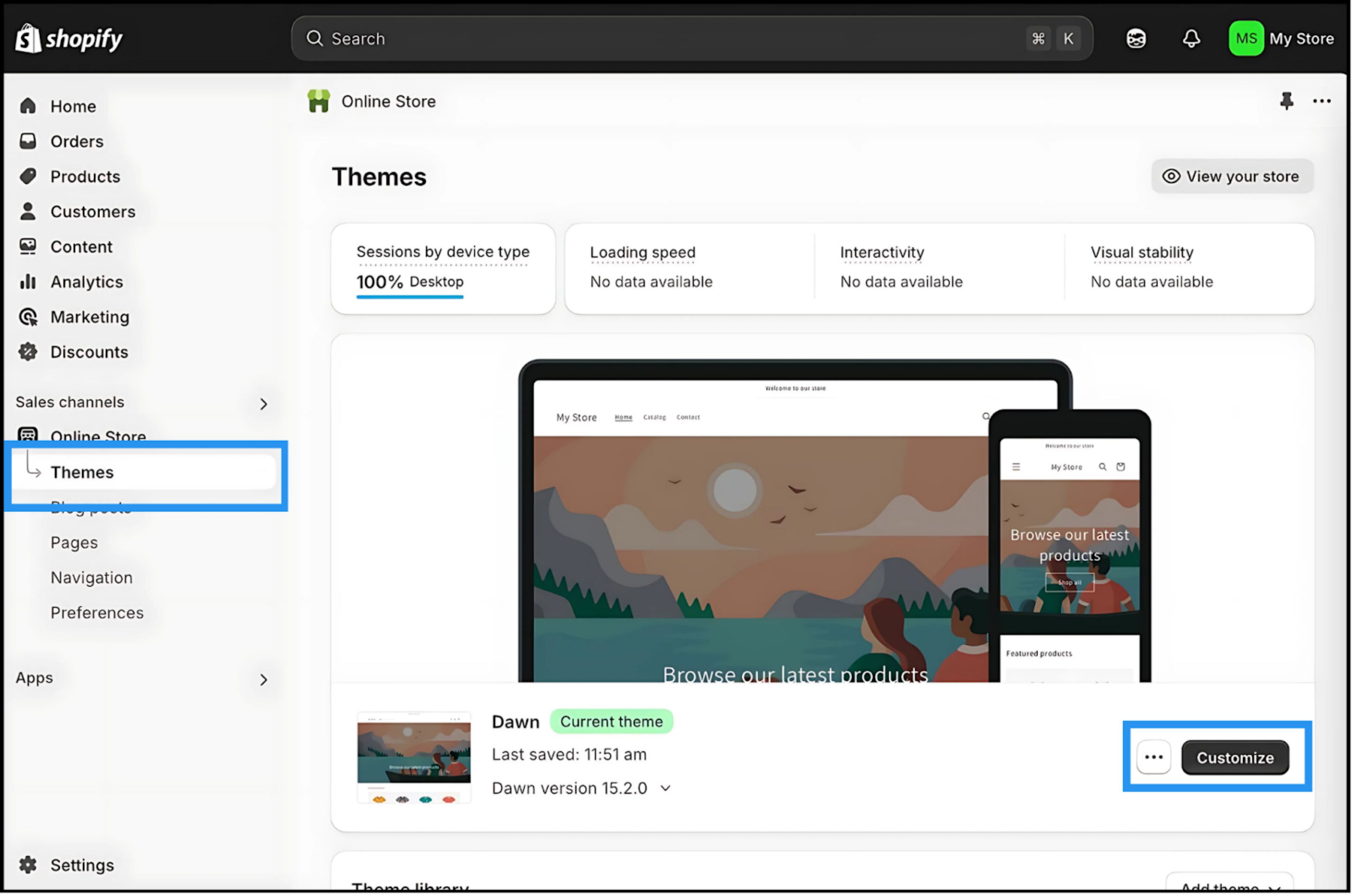
Accedi al tuo Pannello di Amministrazione Shopify.
- 2
Naviga su Negozio online > Temi.
- 3
Individua il tuo tema attivo (Live) e fai clic su Icona Tre Punti (⋮) pulsante.
- 4
Seleziona Modifica codice.
3. Passaggio 2: Inietta lo script dell'infrastruttura
- 1
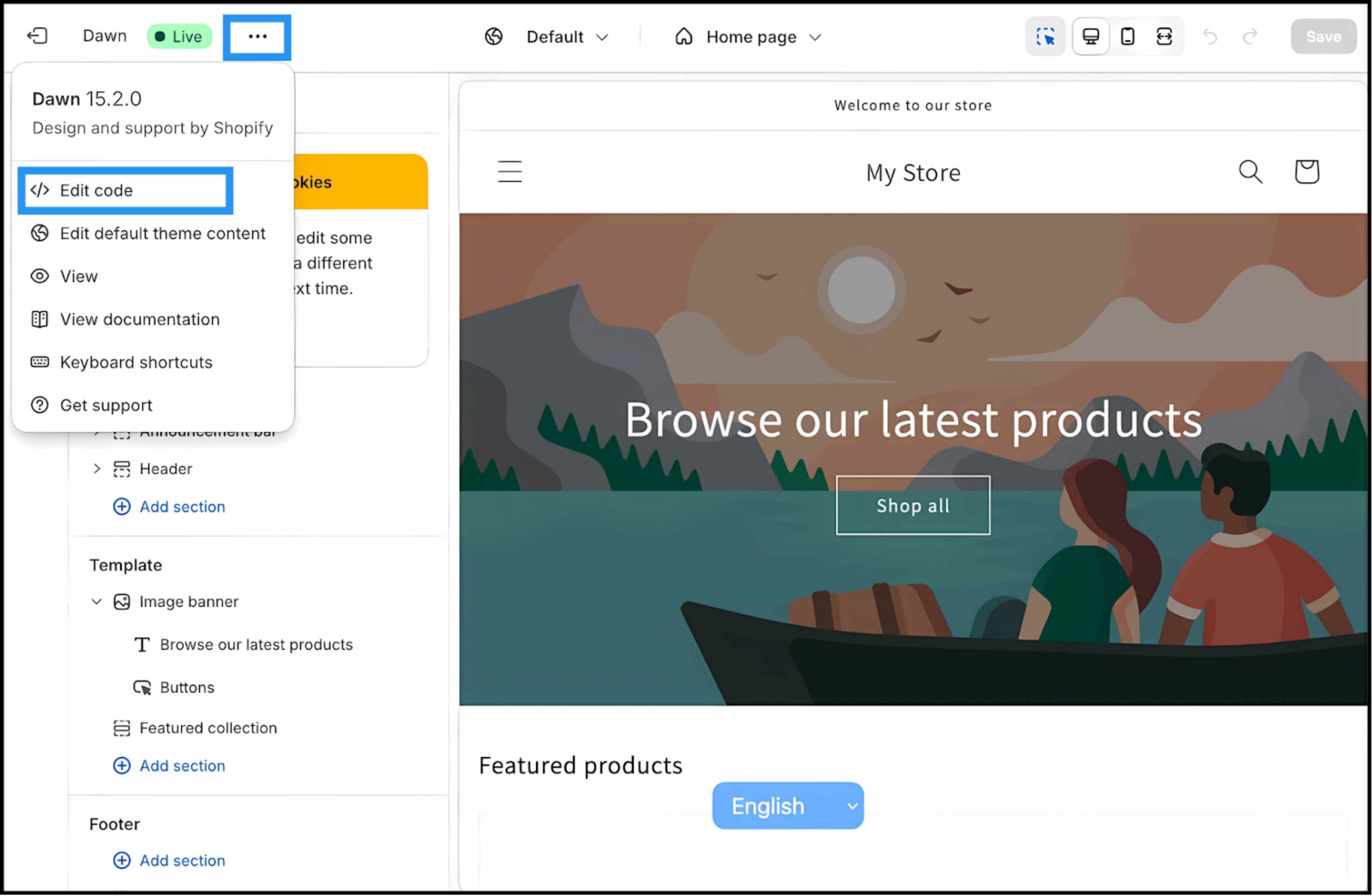
Nella directory dei file (barra laterale sinistra), individua il Layout cartella.
- 2
Apri
theme.liquid. Questo è il modello principale per la tua vetrina. - 3
Scorri verso il basso per trovare la chiusura
</head>tag.
Azione: Incolla lo script di connessione
Incolla immediatamente il seguente script di connessione sopra il </head> etichetta:
<script
  src="https://multilipistorage.blob.core.windows.net/static/js/page_translations.js"
  key="YOUR_API_KEY_HERE"
></script>
⚠️ Configurazione Critica
- •Sostituisci
LA_TUA_CHIAVE_API_QUIcon la chiave API effettiva copiata dalla tua dashboard MultiLipi. - •Fai clic Salva nell'angolo in alto a destra.
4. Passaggio 3: Validazione e Avvio
Una volta salvato, l'infrastruttura è attiva.
Apri Vetrina
Vai all'URL del tuo sito web attivo.
Verifica UI
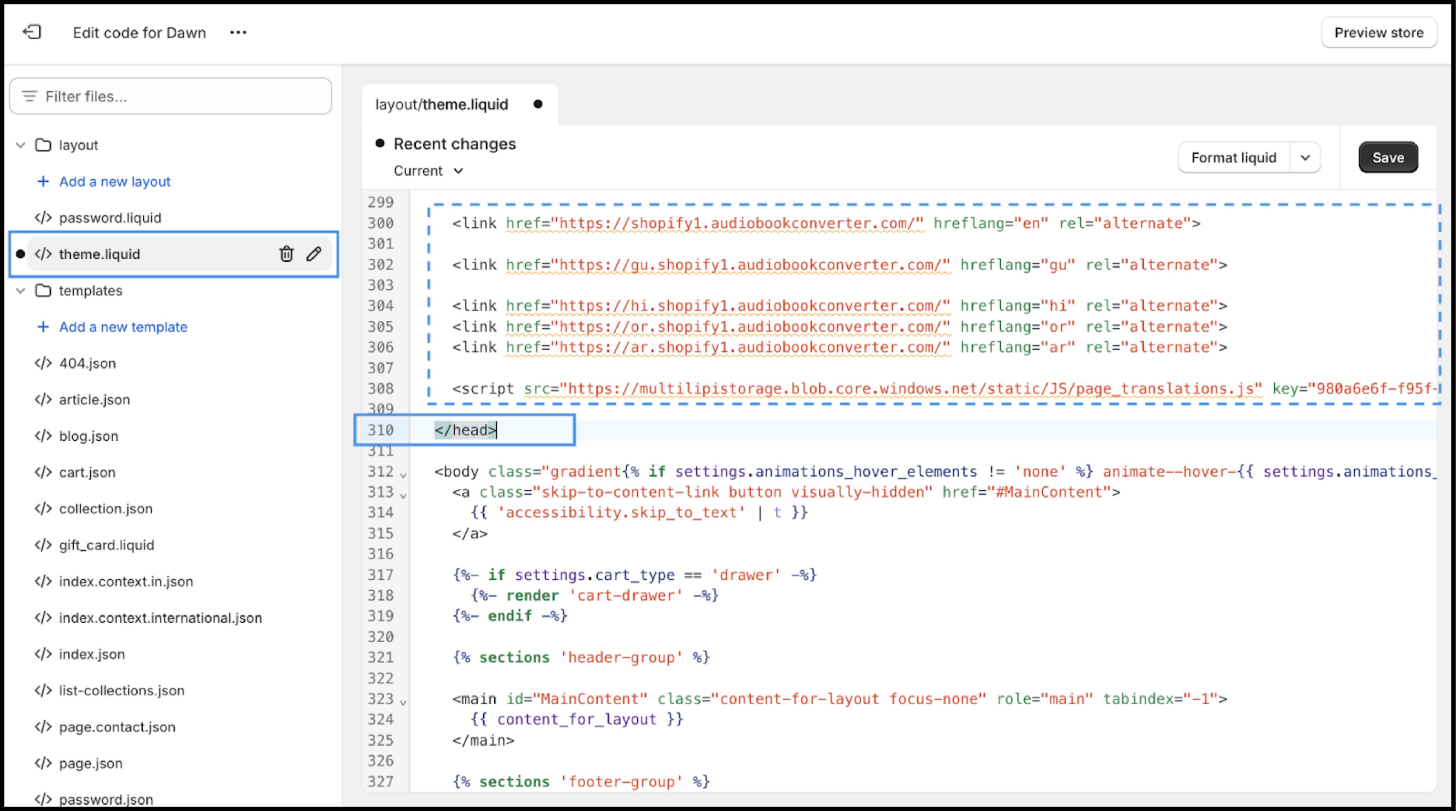
Dovresti visualizzare il selettore della lingua ancorato all'angolo inferiore sinistro (posizione predefinita).
Testa la Traduzione
Passa a una lingua di arrivo. Verifica che i titoli dei prodotti, le descrizioni e i pulsanti "Aggiungi al carrello" vengano tradotti istantaneamente.
Protocollo di Risoluzione Problemi
- •Non vedi il selettore? Assicurati che lo script si trovi sopra il tag di chiusura
</head>, non sotto di esso. - •Memorizzazione nella cache: Se utilizzi un'applicazione di cache di terze parti, svuota la cache.
- •In incognito: Esegui il test in una finestra di navigazione in incognito/privata per aggirare la cache del browser locale.
5. Prossimi passaggi: Ottimizzazione e-commerce
Ora che il motore è in funzione, ottimizzalo per le vendite:
Blocca il tuo marchio
Utilizza il Glossario per evitare che i nomi dei prodotti o i termini registrati vengano tradotti letteralmente.
Attivazione SEO
Assicurati che la "Traduzione degli slug" sia abilitata nelle tue impostazioni MultiLipi in modo che gli URL dei tuoi prodotti (ad es. /products/red-shoes) diventino parole chiave indicizzate nei mercati di riferimento (ad es. /products/zapatos-rojos).
Allineamento del checkout
Verifica che le impostazioni di checkout in Shopify consentano campi localizzati se stai utilizzando Shopify Plus.