

Il testo è solo una parte della storia. Per ottenere un'immersione completa, anche le tue risorse visive devono parlare la lingua locale. L'infrastruttura di MultiLipi ti consente di eseguire lo scambio di asset sul perimetro. Puoi sostituire l'URL di origine (src) e i metadati (alt) di qualsiasi immagine in base alla lingua dell'utente.
Scenario A (Testo nell'immagine): Scambia un banner inglese "Summer Sale" con un banner francese "Soldes d'été".
Scenario B (Rilevanza culturale): Mostra un'immagine di cricket per gli utenti in India e un'immagine di calcio per gli utenti in Brasile.
Scenario C (SEO): Traduci i tag alt invisibili per garantire che le tue immagini si posizionino su Google Immagini per le parole chiave locali.
Questa guida illustra il protocollo per lo scambio di risorse utilizzando l'Editor visivo.
1. Il protocollo di scambio
Come iniettare contenuti multimediali localizzati.
Questo processo viene eseguito interamente all'interno del nostro editor visivo, un'interfaccia "What You See Is What You Get" (WYSIWYG) che si sovrappone al tuo sito live.
Passo 1: Accedere al contesto del progetto
- •Accedi al tuo Dashboard MultiLipi.
- •Naviga alla sezione Progetti dalla homepage.
- •Seleziona il progetto del sito web specifico che desideri modificare.
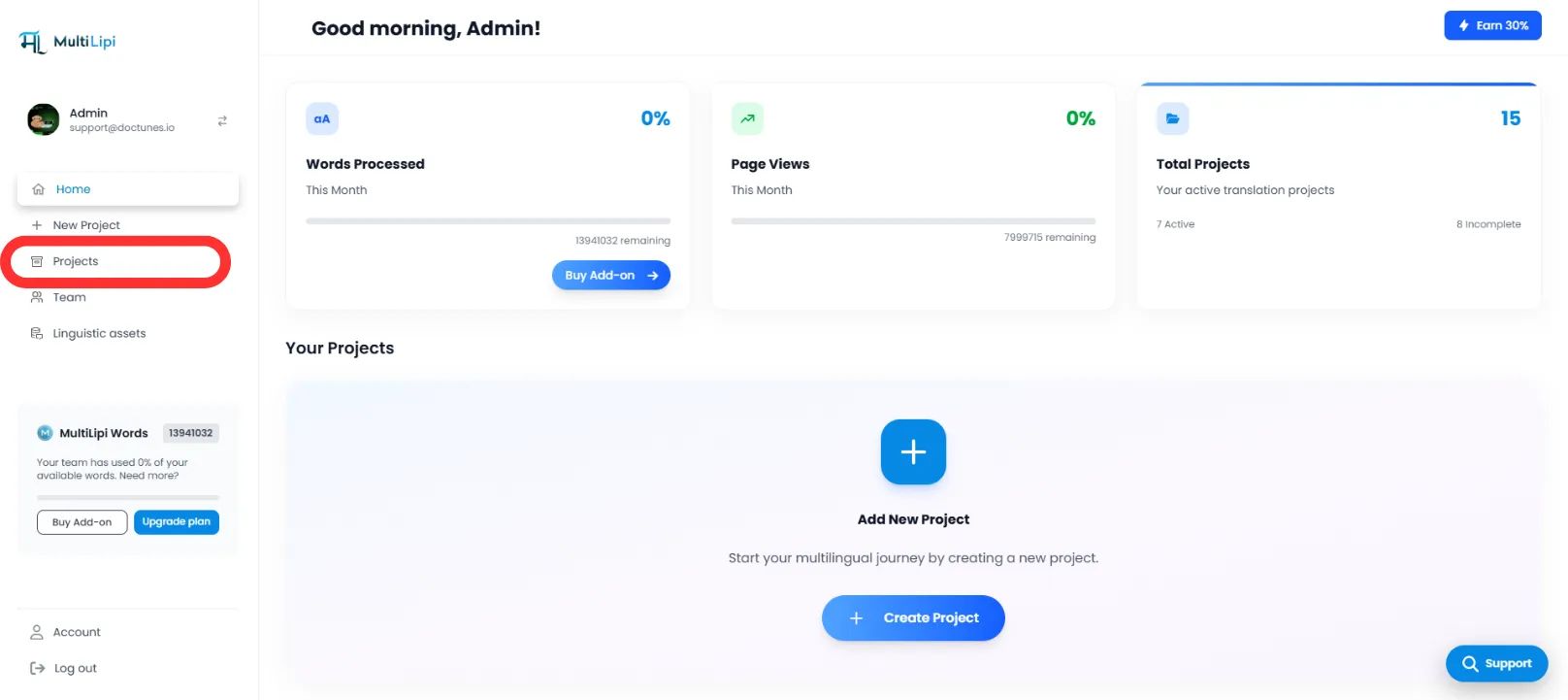
Passaggio 2: Inizializza Editor
- •Naviga alla scheda Traduzioni.
- •Individua l'URL specifico della pagina (ad es. /prezzi) in cui risiede l'immagine.
- •Azione: Sul lato destro, fai clic sul pulsante Editor visivo (o sull'icona ✒️).
- •Azione di sistema: questo apre un'anteprima live e modificabile del tuo sito web in una nuova finestra.
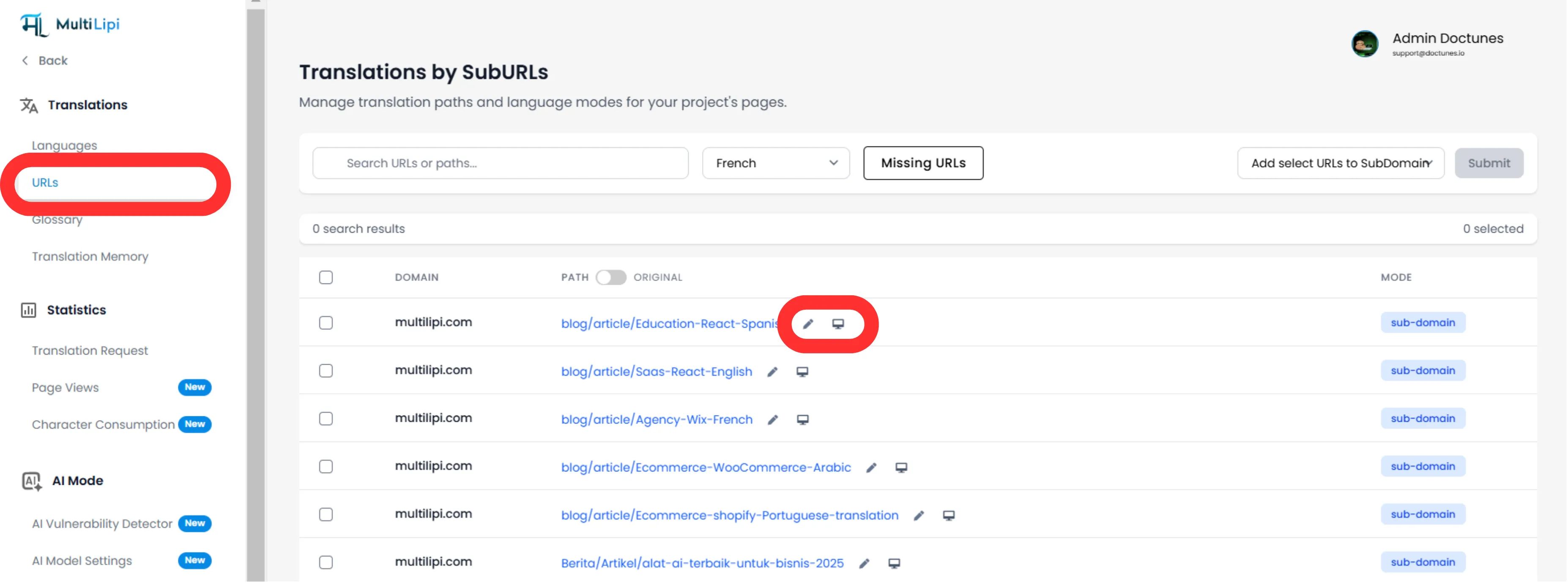
Passaggio 3: Esegui scambio risorse
- •Seleziona: Nell'anteprima live, fai clic direttamente sull'immagine che desideri localizzare.
- •Configura: apparirà una finestra modale con due campi modificabili:
Origine immagine tradotta:
Incolla l'URL completo del nuovo file immagine (ospitato sul tuo CDN/Server).
Tag alt tradotto:
Inserisci la descrizione tradotta per accessibilità e SEO.
- •Ripeti: puoi eseguire questa azione per ogni elemento immagine nella pagina.
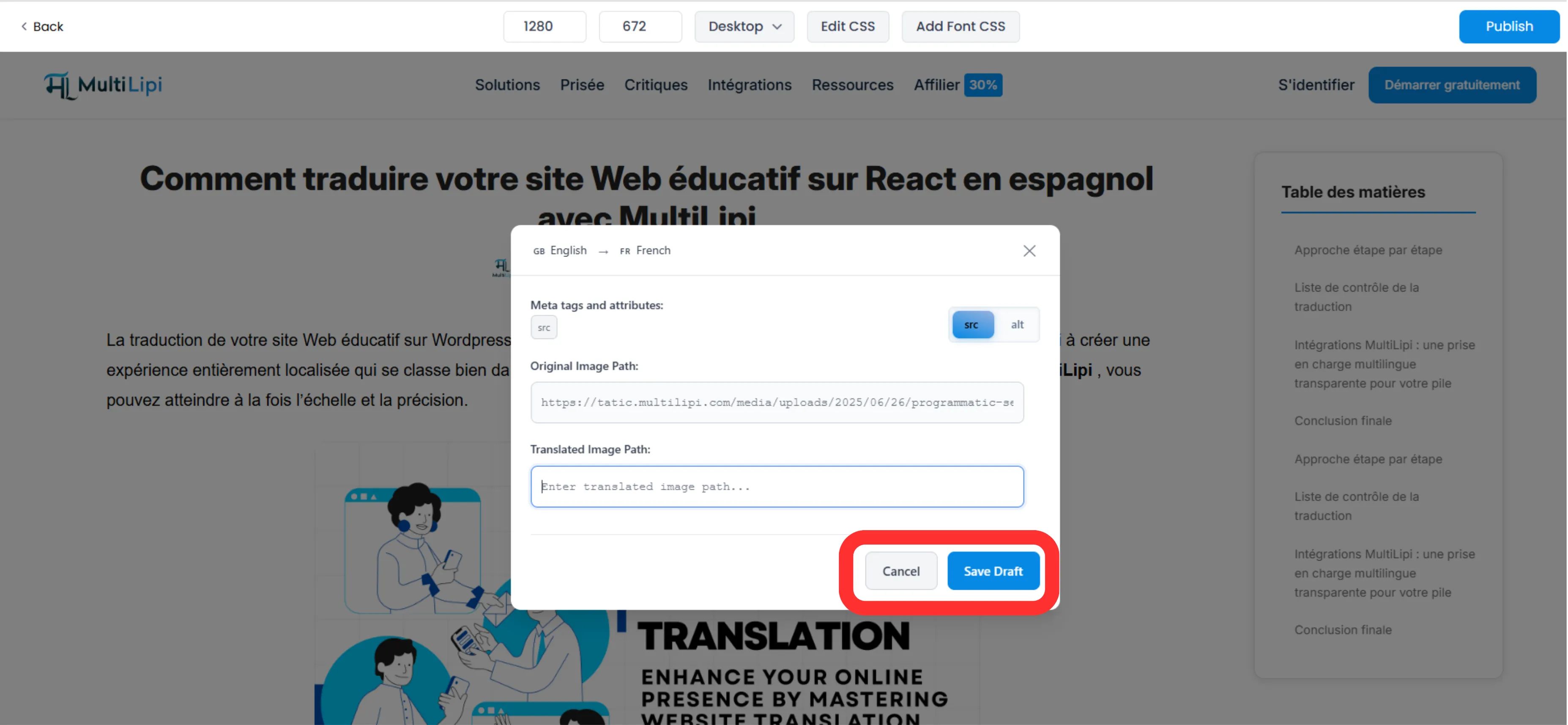
Passaggio 4: Esegui il commit delle modifiche
Una volta configurato lo scambio, fai clic su Salva bozza nella barra degli strumenti dell'editor.
Risultato:
La modifica viene salvata. Quando un utente visita la pagina tradotta, il nostro motore scambia dinamicamente l'attributo src dell'HTML per caricare la tua nuova immagine.
2. Benefici Strategici
Perché preoccuparsi di tradurre le immagini?
SEO visivo: I motori di ricerca indicizzano il testo alternativo. Se la tua pagina italiana ha tag alt in inglese, perdi traffico. Localizzarli ti aiuta a posizionarti per le ricerche di immagini in italiano.
Tasso di conversione: Gli utenti ignorano i banner che non possono leggere. La traduzione del testo incorporato nelle immagini promozionali migliora drasticamente i tassi di clic.
Accessibilità: Gli screen reader si basano sul testo alternativo. La localizzazione di questo testo garantisce che gli utenti non vedenti o ipovedenti in altri paesi possano navigare efficacemente nel tuo sito.
3. Best Practice
Hosting CDN: MultiLipi non ospita i tuoi file immagine. Devi caricare le tue immagini localizzate (ad esempio, banner-it.jpg) sul tuo server o libreria multimediale (WordPress Media / Shopify Files) e copiare quell'URL nel campo "Translated Image src".
Lunghezza testo alternativo: Mantieni il tuo testo alternativo tradotto conciso (meno di 100 caratteri) per massimizzare l'impatto SEO senza essere segnalato come "keyword stuffing".