
I modelli di traduzione AI sono potenti, ma possono essere troppo creativo. Un glossario funge da "Guardrail Layer," forzando il motore di traduzione ad aderire alle tue specifiche regole del marchio. Sia che si tratti di garantire "Apple" rimane un nome del marchio (e non un frutto) o mantenendo i disclaimer legali verbatim, il Gestore Glossario MultiLipi ti dà il controllo assoluto.
Questa guida copre i due metodi per definire queste regole: Inserimento Manuale (Precisione) e Ingestione CSV (Bulk).
Imponi coerenza terminologica rigorosa
I glossari sovrascrivono le decisioni di traduzione AI per mantenere l'integrità del marchio. Usali per nomi di aziende, codici prodotto, termini legali, gergo tecnico e parole chiave SEO di alto valore che devono rimanere coerenti in tutte le lingue.
Accesso alla Base Termini
Il Glossario è un'impostazione globale che si applica a tutti i tuoi progetti.
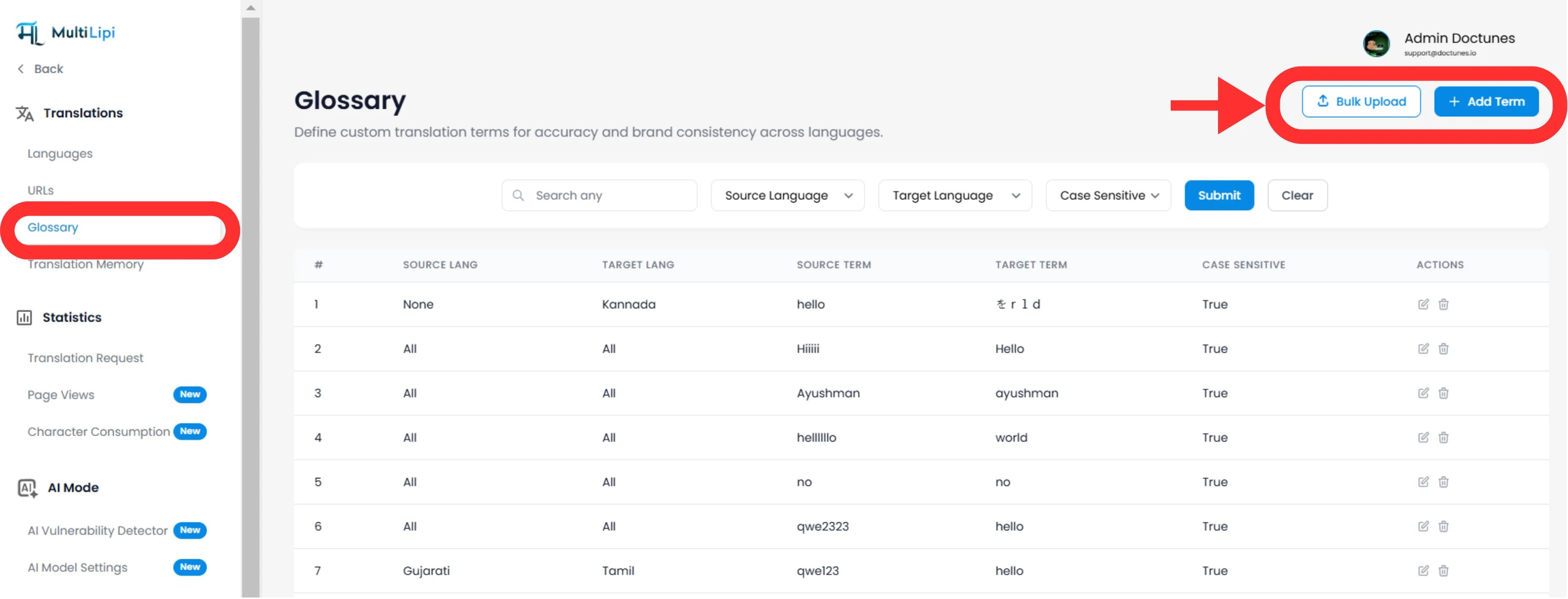
Naviga: Dal tuo MultiLipi Dashboard, espandi il Traduzioni menu nella barra laterale.
Seleziona: Fai clic Glossario.
Visualizza: Vedrai una tabella ricercabile di tutte le regole attive, le loro coppie di lingue e lo stato di sensibilità alle maiuscole.
Metodo 1: Definizione Precisa della Regola (Manuale)
Ideale per:
Bloccare nomi di marchi, SKU di prodotti e slogan di marketing specifici.
Inizia
Fai clic sul Nuovo pulsante nell'angolo in alto a destra.
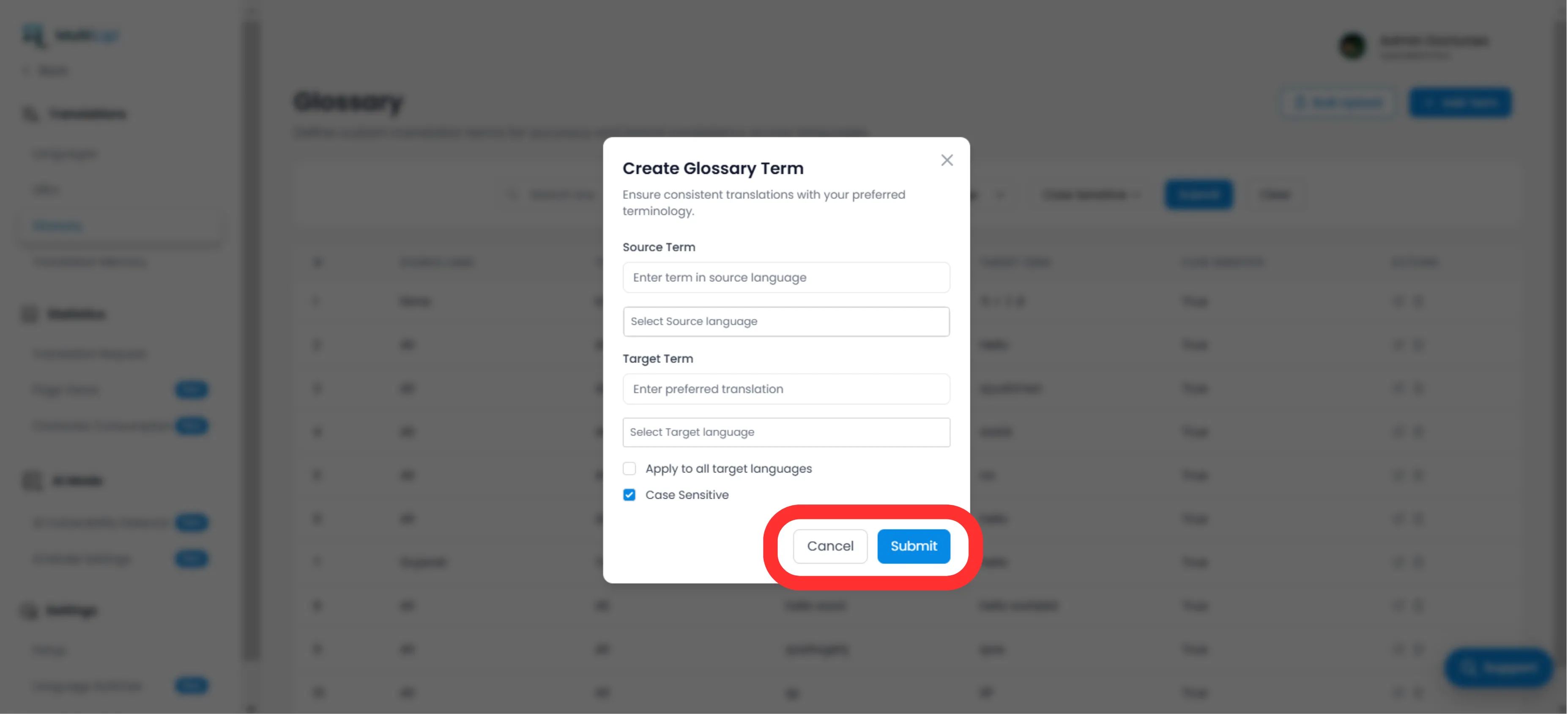
Definisci la Regola
Termine di origine
La parola o frase esatta nella tua lingua originale (ad es., "CloudDrive").
Termine di arrivo
La traduzione imposta (es. "CloudDrive" - per mantenerlo in inglese, o "Le CloudDrive").
Ambito Linguistico
Specifico
Applica solo a EN → FR.
Globale
Seleziona "Tutte le Lingue" per bloccare un nome del marchio a livello mondiale.
Sensibilità alle Maiuscole
Abilitato
Corrispondenze "Apple" ma ignora "apple". Essenziale per parole comuni che sono anche nomi propri.
Distribuisci
Fai clic Invia. La regola è istantaneamente inviato al motore di traduzione e si applicheranno a tutte le traduzioni future.
Metodo 2: Ingestione Bulk (Caricamento CSV)
Ideale per:
Migrare basi di termini legacy, dizionari legali o elenchi di prodotti e-commerce.
Se hai centinaia di termini, non inserirli manualmente. Usa il nostro strumento di importazione CSV.
Prepara i tuoi dati
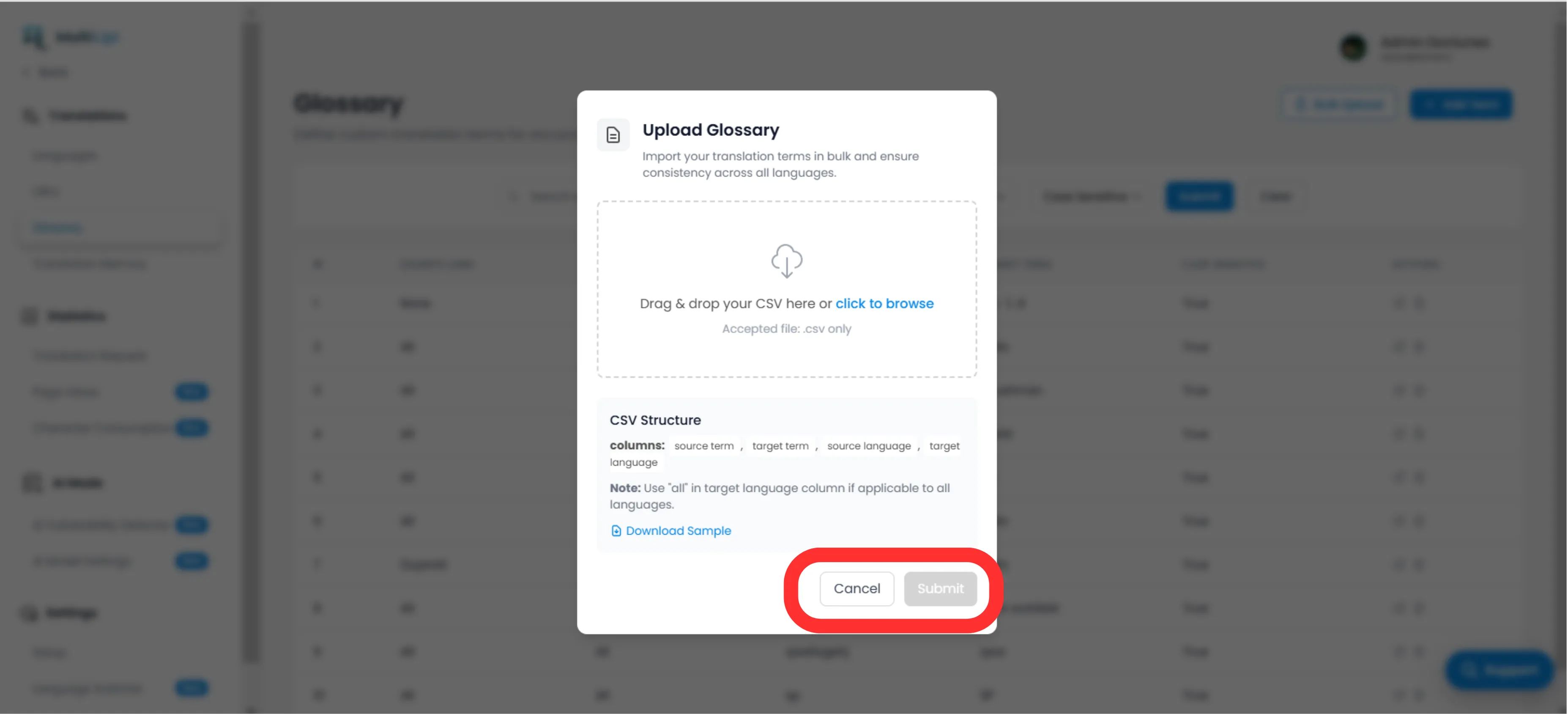
Crea un file CSV con la seguente struttura di intestazione:
source_term, target_term, source_language, target_languageNota
Usa codici ISO per le lingue (ad es., en, fr, DE). Usa tutto per le regole globali.
Caricamento
Fai clic sul Caricamento pulsante nel pannello Glossario.
Mappa e Valida
Seleziona il tuo file. Il sistema analizzerà le righe e segnalare eventuali errori di formattazione.
Esegui
Fai clic Invia per ingerire le regole nella tua Base Termini attiva.
Best Practice Strategiche
Blocca il tuo marchio
La prima regola che dovresti creare è per il tuo Nome Aziendae imposta il target su identico all'originale e applicala a Tutte le Lingue.
Parole Chiave SEO
Se stai puntando a uno specifico parola chiave ad alto volume in Germania (ad es., "Utile" invece di "Mobiltelefon"), crea una regola del glossario per forzare il motore a utilizzare il termine a più alto traffico.
Mantienilo Breve
I glossari funzionano meglio per frasi di 1-3 parole. Non usarli per intere frasi; usa il Memoria di Traduzione o Editor Visivo per questo.
Pronto a imporre la coerenza del marchio? Apri il Gestore Glossario e inizia oggi stesso a definire le tue guardrail di traduzione.