

Framer è una piattaforma incredibile per progettare siti web velocissimi e visivamente sbalorditivi. Ma per scalare veramente il tuo brand, il tuo sito deve essere scopribile in più lingue e ottimizzato per la nuova era dei motori di risposta AI.
Installando il MultiLipi: Traduci e posizionati con l'IA plugin, colmi senza problemi il divario tra design di livello mondiale e ottimizzazione di livello enterprise per i motori generativi (GEO), senza scrivere una sola riga di codice.
Perché integrare MultiLipi con Framer?
Prima di immergerti nella configurazione, ecco cosa sblocca questo plugin per il tuo sito Framer:
Localizzazione senza codice
Non è necessario duplicare le pagine o gestire complesse strutture CMS. MultiLipi traduce l'intero sito Framer blocco per blocco in modo dinamico.
Dominio SEO globale
Le tue pagine tradotte diventano immediatamente indicizzabili da Google nelle rispettive regioni: gli utenti di lingua spagnola ti trovano in spagnolo, gli utenti di lingua giapponese in giapponese.
Visibilità AI (GEO)
MultiLipi inietta automaticamente JSON-LD Schema ottimizzato e genera file llms.txt direttamente nell'infrastruttura del tuo sito Framer, facendo in modo che ChatGPT, Perplexity e Gemini citino il tuo brand.
Prerequisiti
Prima di iniziare, assicurati di avere:
Guida all'installazione passo dopo passo
Segui questi passaggi per far funzionare MultiLipi sul tuo sito Framer in pochi minuti.
Apri il tuo progetto Framer
Accedi al tuo account Framer e seleziona lo spazio di lavoro del progetto specifico in cui desideri aggiungere funzionalità multilingue.
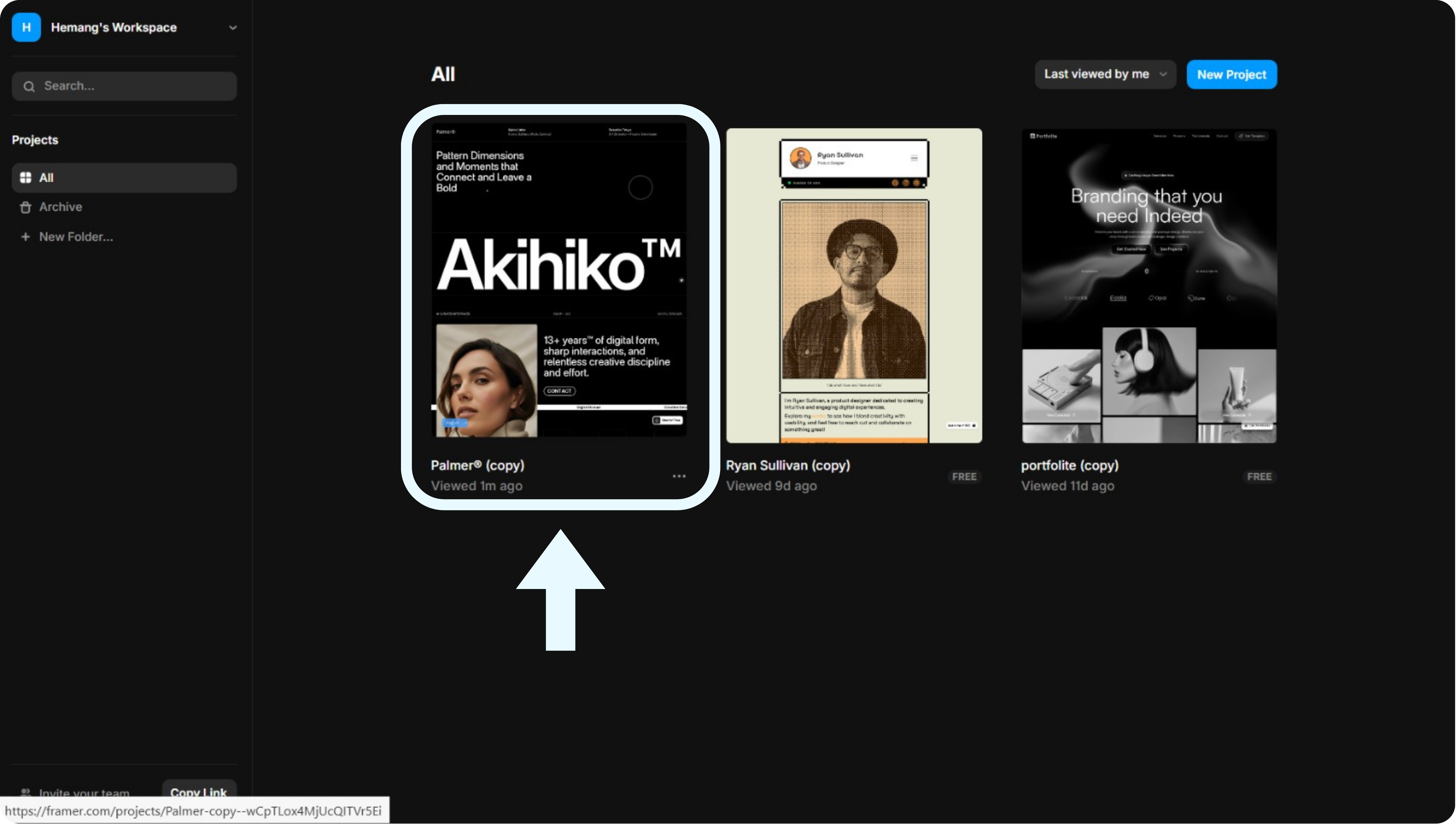
Nota: Assicurati di disporre dell'accesso come editor al progetto. Gli account con sola visualizzazione non possono installare plugin.
Accedi al menu dei plugin
All'interno dell'editor di Framer, fai clic sull'icona del menu principale (il logo di Framer) in alto a sinistra dello schermo. Scorri verso il basso e seleziona Plugin dall'elenco a discesa, quindi scegli Sfoglia tutto.
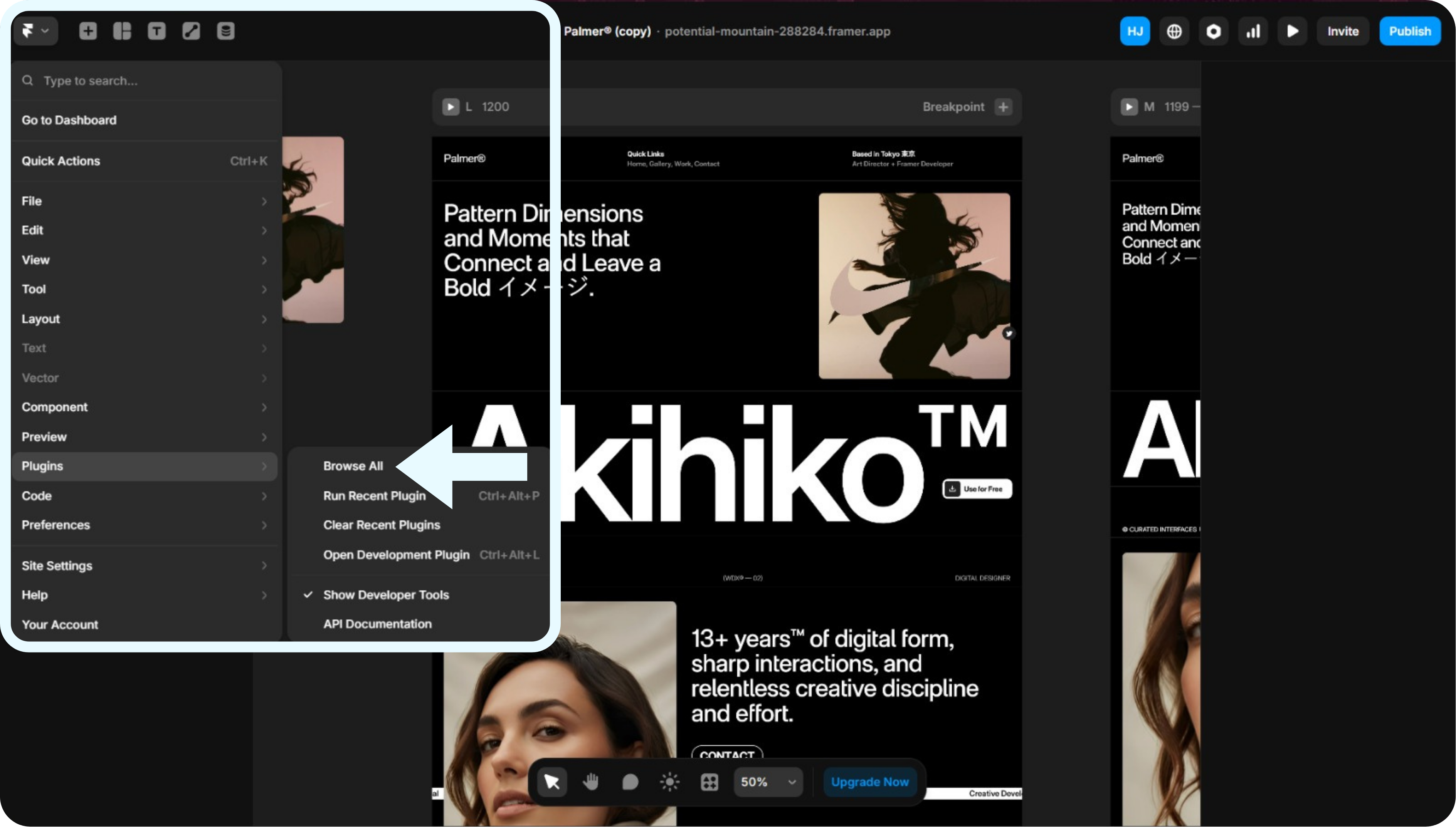
Nota: L'opzione Plugin si trova in fondo al menu a discesa principale.
Cerca e installa MultiLipi
Verrà visualizzato un popup di ricerca dei plugin. Digita "MultiLipi" nella barra di ricerca, individua il plugin denominato MultiLipi: Traduci e posizionati con l'IA, quindi fai clic su di essa per avviare la finestra di configurazione.
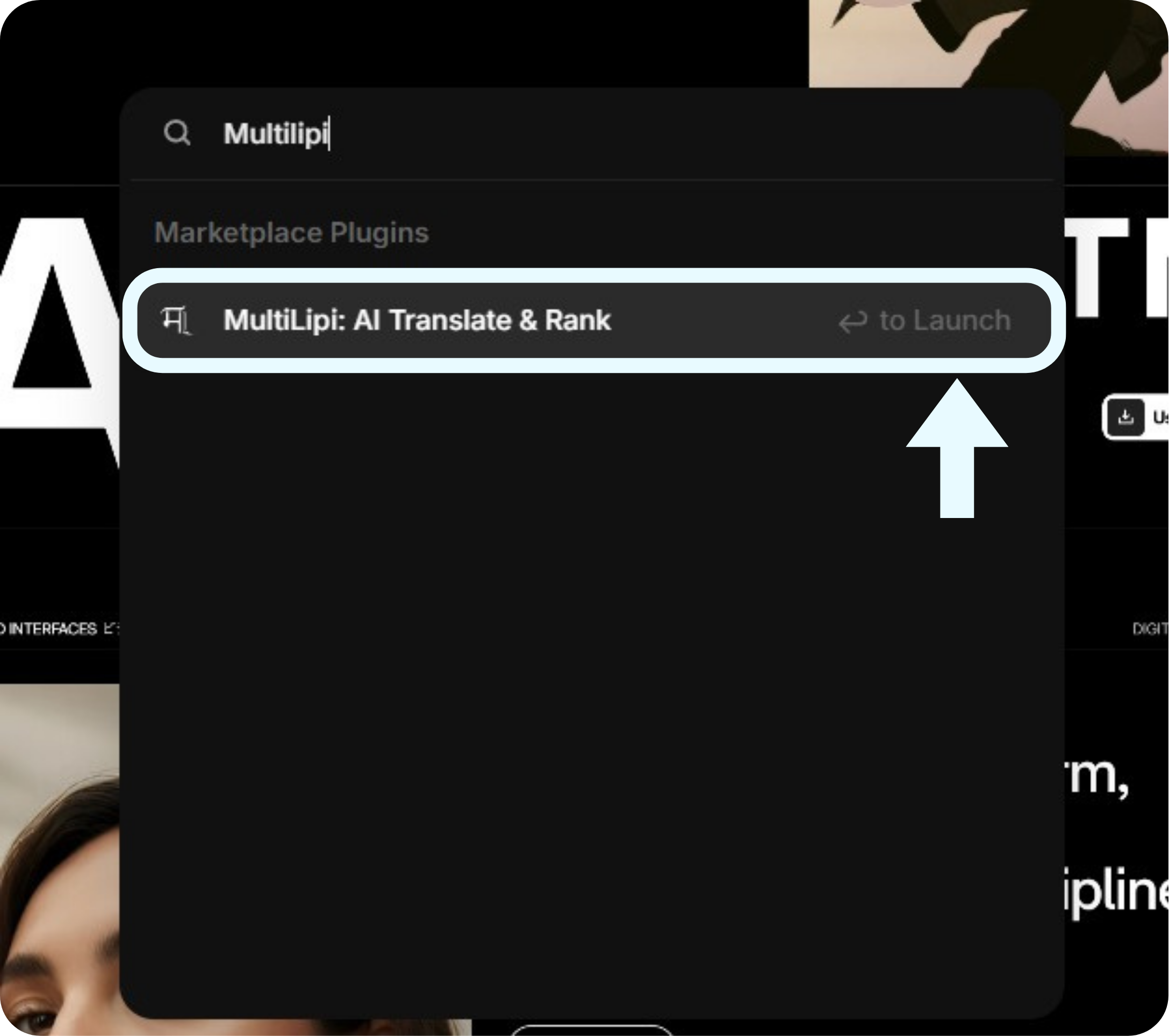
Nota: Se il plugin non viene visualizzato, assicurati che la tua connessione internet sia stabile e prova ad aggiornare Framer.
Collega la tua chiave di progetto
Il Configurazione di MultiLipi la finestra modale ti chiederà di collegare il tuo account. Incolla la tua chiave di progetto univoca (ad es. a1ee519f…) nel campo di testo, quindi fai clic sul pulsante blu Connettiti a MultiLipi pulsante.
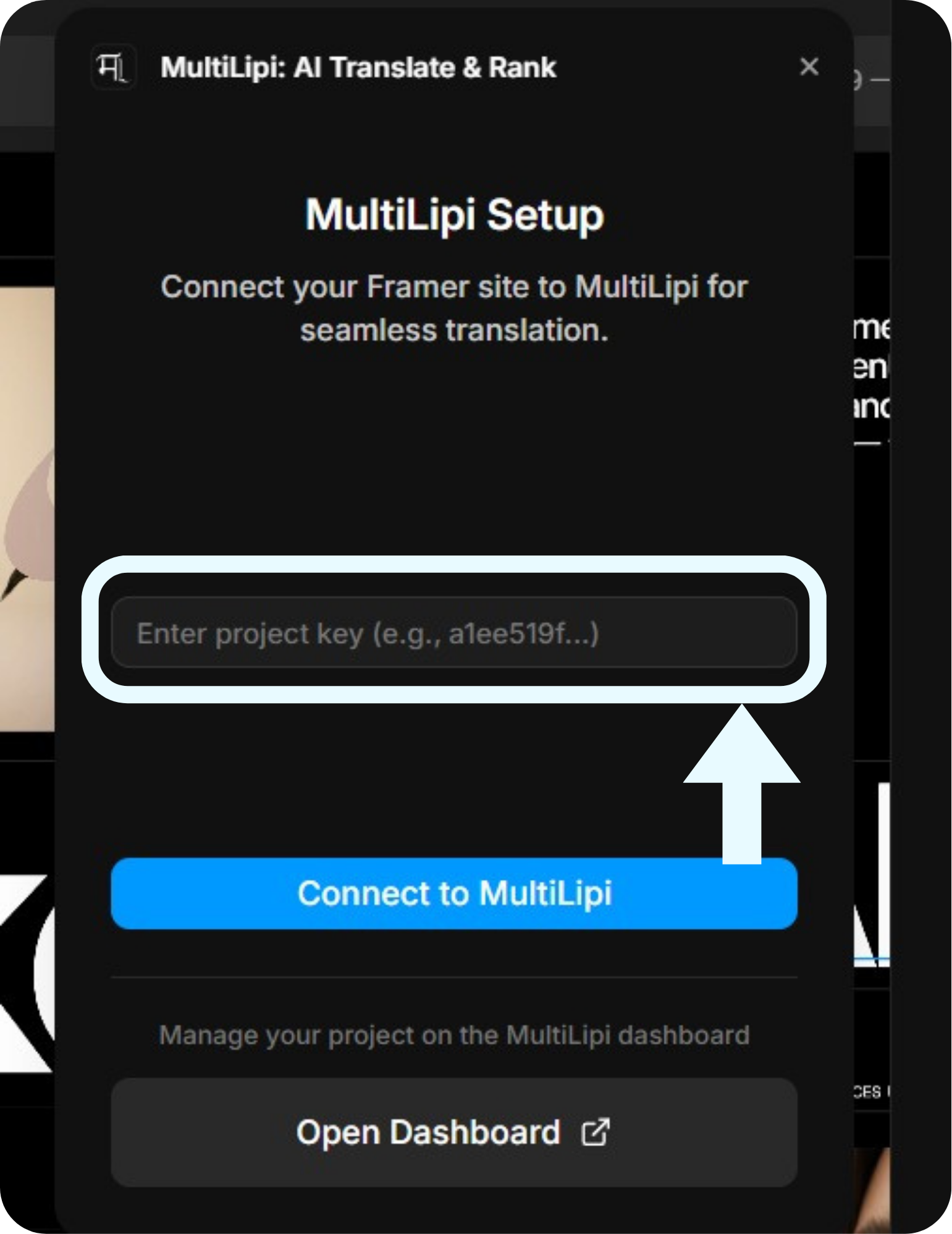
Nota: La tua chiave di progetto si trova nella dashboard di MultiLipi nelle impostazioni del progetto. Mantienila privata, trattala come una password.
Verifica la connessione
Una volta connesso, la finestra del plugin si aggiorna per mostrare la tua configurazione attiva. Vedrai un punto verde che indica "Connesso al progetto", insieme alla tua lingua originale (ad es. inglese) e alle lingue di destinazione configurate (ad es. hindi, francese).
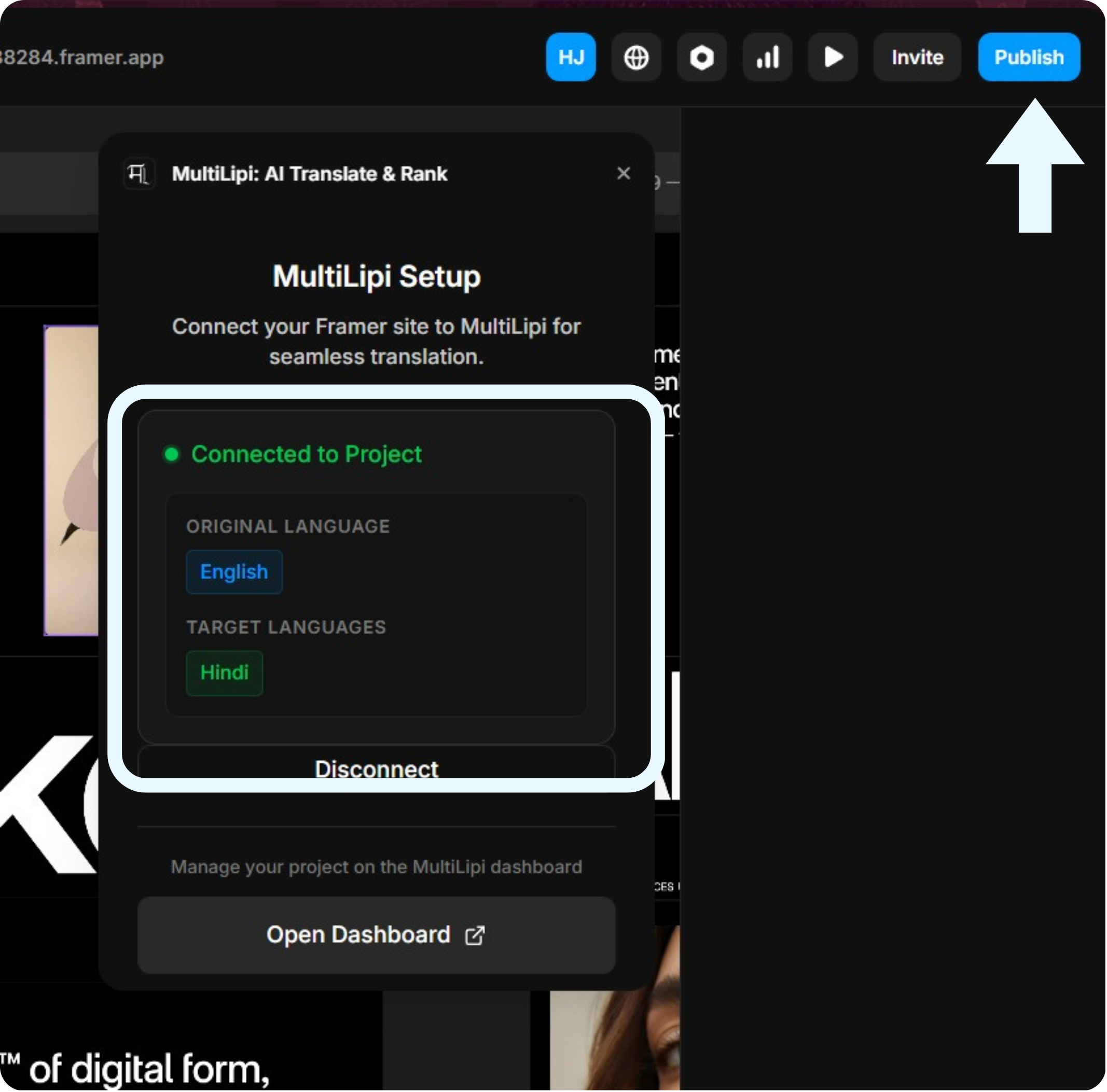
Nota: Se devi aggiungere o rimuovere lingue, fai clic su "Apri Dashboard" per gestirle nel tuo account MultiLipi.
Pubblica il tuo sito
MultiLipi è ora inserito nel codice del tuo sito! Per pubblicare queste modifiche:
Post-installazione e risoluzione dei problemi
Una volta pubblicato, visita il tuo sito web attivo. Ora dovresti vedere il selettore della lingua di MultiLipi (solitamente fluttuante nell'angolo in basso a sinistra per impostazione predefinita). Cambia la lingua per attivare le tue prime traduzioni!