
Il selettore di lingua è l'elemento di navigazione principale per il tuo traffico internazionale. MultiLipi fornisce un editor a doppia interfaccia, che ti consente di controllare il comportamento e l'estetica di questo elemento in modo indipendente per i viewport Desktop e Mobile.
Questa guida copre la configurazione di Layout, Posizionamento, e Stile del marchio tramite il MultiLipi Command Center.
1. Accesso all'editor dell'interfaccia
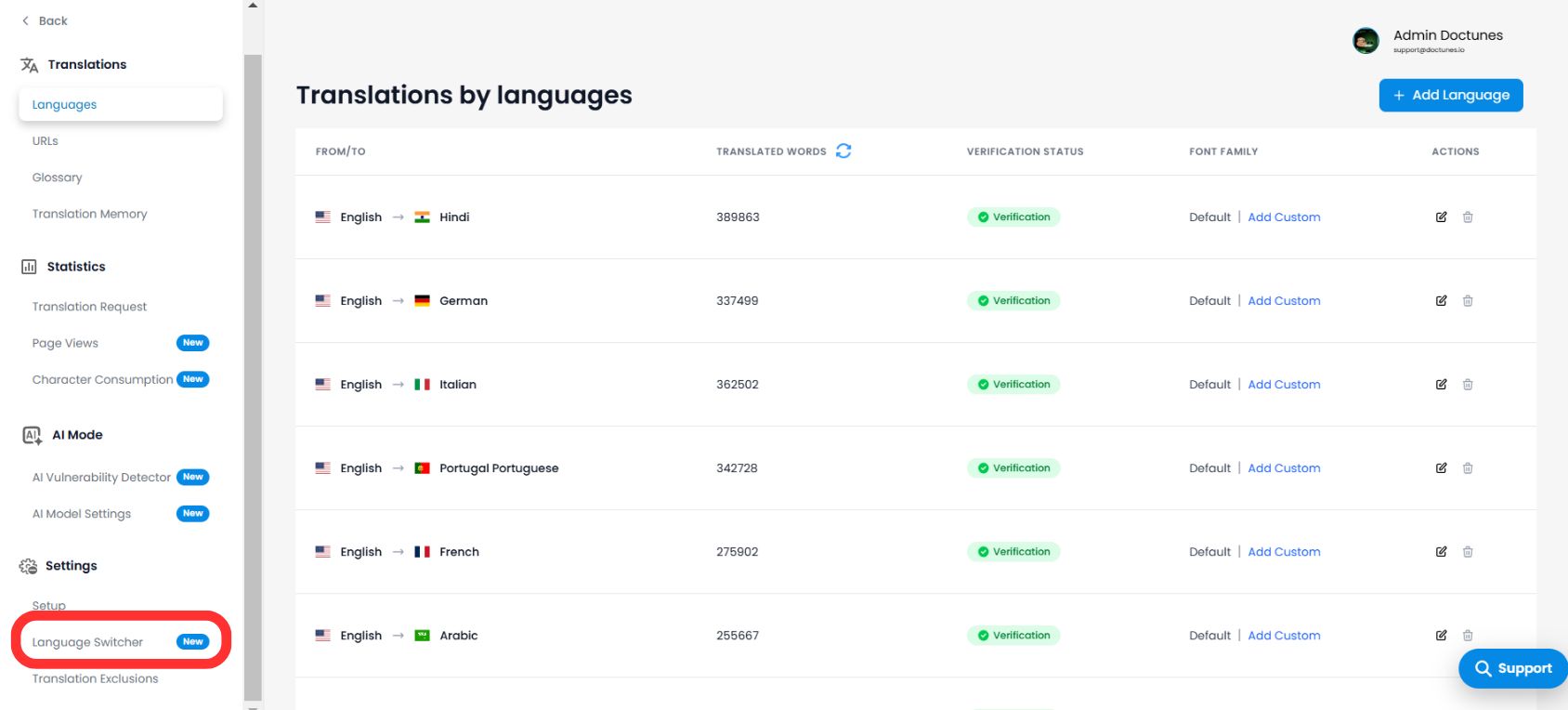
Per iniziare a personalizzare la tua integrazione frontend:
- 1Naviga al tuo Dashboard MultiLipi.
- 2Apri Impostazioni dal menu di sinistra.
- 3Seleziona Language Switcher.
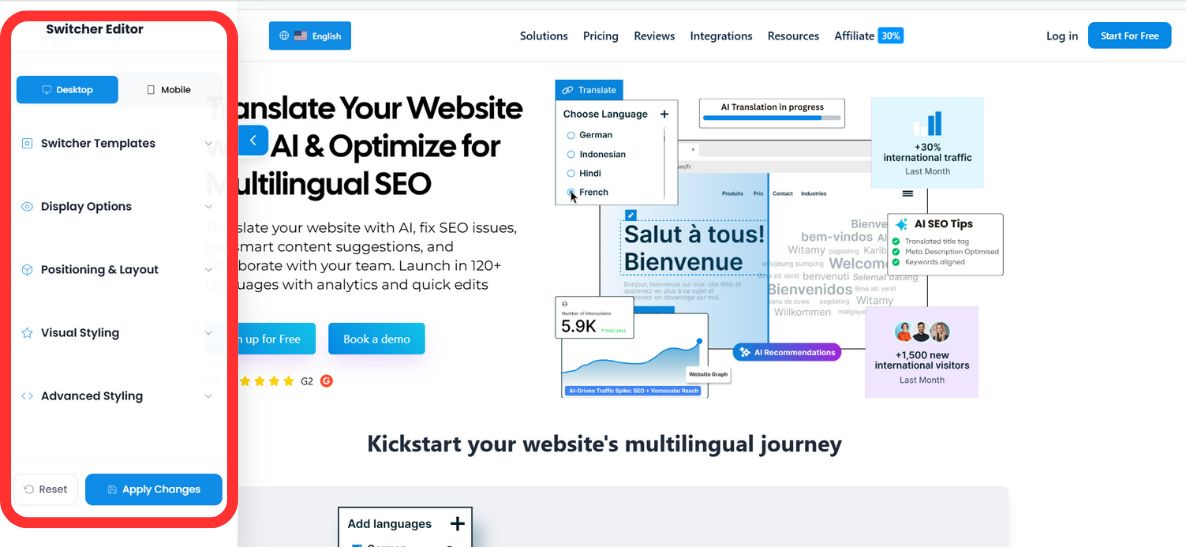
💡 Suggerimento Pro: Entrerai nell'Editor dello Switcher, che presenta un'area di anteprima in tempo reale. Usa l'interruttore in alto per passare da Desktop e Mobile visualizzazioni per garantire la reattività su tutti i dispositivi.
2. Passaggio 1: Selezione dell'Architettura (Posizionamento)
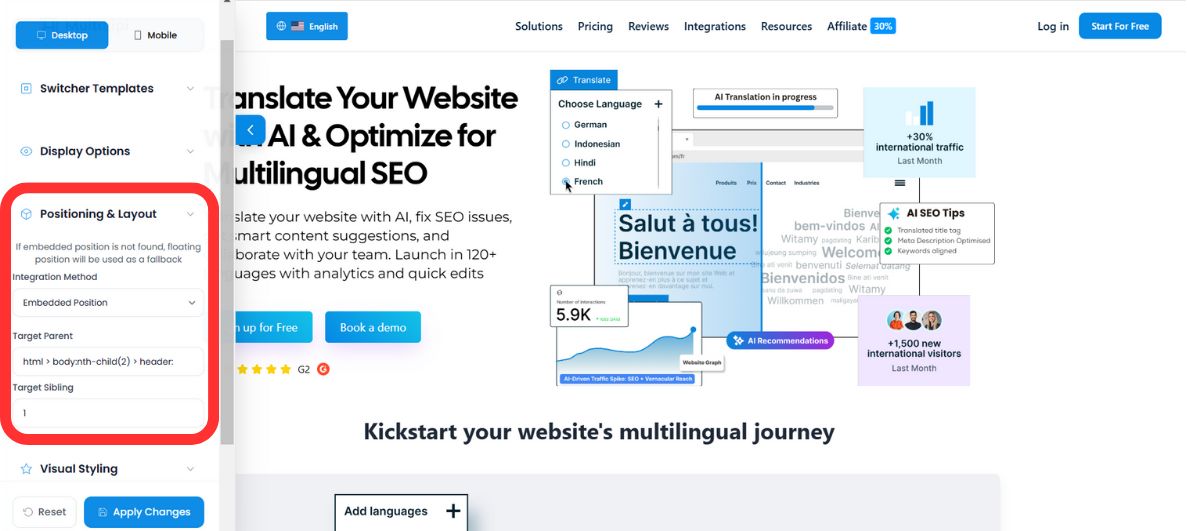
Definisci come il selettore si comporta all'interno del tuo DOM. Hai due modalità di distribuzione:
Modalità A: Fluttuante (Predefinito)
Comportamento: Il commutatore si sovrappone al tuo contenuto, ancorato a un angolo specifico dello schermo (ad esempio, in basso a destra).
Caso d'uso: Ideale per una visibilità immediata senza alterare il codice di layout esistente del tuo sito web.
Modalità B: Incorporato (Integrato)
Comportamento: Il commutatore viene iniettato in un elemento HTML specifico da te definito (ad esempio, all'interno della barra di navigazione o del piè di pagina).
⚠️ Il protocollo di fallback
Se il contenitore HTML specificato non viene trovato in una determinata pagina, il sistema di MultiLipi Logica di fallback riporta automaticamente il selettore alla "Modalità Fluttuante". Ciò garantisce che gli utenti non vengano mai esclusi dalla selezione della lingua, anche se il layout cambia.
3. Passaggio 2: Identità visiva (Modelli e colori)
Allinea lo switcher al Design System del tuo brand.
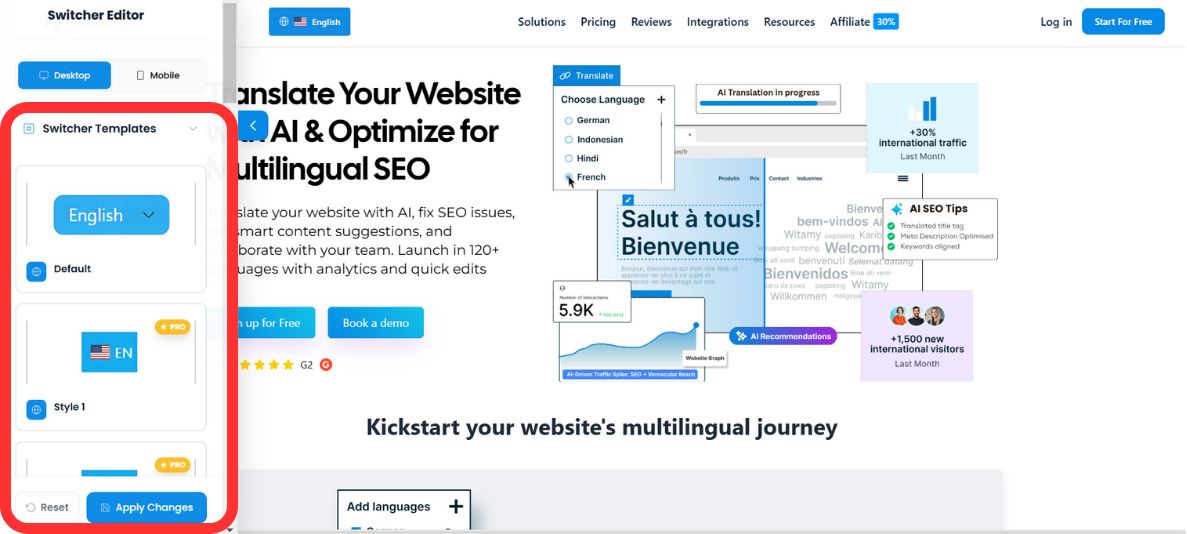
Selezione del modello
Scegli dalla nostra libreria di pattern UI preconfigurati per abbinare l'estetica del tuo sito:
Integrazione Palette
Sovrascrivi gli stili predefiniti per adattarli alle tue linee guida del brand utilizzando il Selettore Colore integrato o i valori RGB grezzi:
- •Colore di sfondo: Abbina gli stili della tua barra di navigazione o dei tuoi pulsanti.
- •Colore del testo: Garantire un elevato contrasto per l'accessibilità (conformità WCAG).
4. Passaggio 3: Stile avanzato (CSS personalizzato)
Per gli sviluppatori che richiedono un controllo preciso, è possibile iniettare regole CSS personalizzate direttamente nello shadow DOM del widget.
Selettori CSS comuni:
#dynamicDropdown- Mira al contenitore principale dell'elenco a discesa.#lang-switcher-selected-lang .fi- Mira all'icona della bandiera della lingua attualmente selezionata.
Configurazione di esempio:
/* Remove border radius for a sharp, square design */
#lang-switcher-selected-lang .fi {
  border-radius: 0px;
}

/* Customize the dropdown background */
#dynamicDropdown {
  background-color: #ffffff;
  box-shadow: 0 4px 12px rgba(0,0,0,0.1);
}
💎 Nota per lo sviluppatore: Il CSS personalizzato ti consente di sovrascrivere qualsiasi proprietà visiva mantenendo la logica funzionale dello switcher. Questo è particolarmente utile per abbinare sistemi di design complessi o implementare variazioni in modalità scura.
5. Distribuzione e Verifica
Una volta completata la configurazione:
Anteprima
Passa tra le modalità Desktop e Mobile nell'editor per verificare la coerenza visiva.
Salva
Fai clic Salva per inviare istantaneamente le modifiche al tuo sito di produzione live.
Reset
Se hai bisogno di ricominciare, usa il Reset funzione per tornare agli stili predefiniti di MultiLipi.
✅ Successo: Il tuo language switcher è ora attivo! Le modifiche si propagano istantaneamente su tutte le pagine in cui MultiLipi è distribuito. Non è necessaria la pulizia della cache o l'aggiornamento della pagina per la maggior parte delle configurazioni.