

La vera localizzazione va oltre le parole; Richiede Allineamento visivo con gli standard tipografici locali . Un carattere che appare elegante in inglese (alfabeto latino) può rendere male in hindi (devanagari) o arabo. MultiLipi permette di iniettare specifici Google Fonts per lingue specifiche , assicurandoti che le tue pagine tradotte risultino native e affidabili.
Questa guida dettaglia il protocollo esatto per recupero degli asset font da Google e configurarli nel tuo centro di comando MultiLipi.
1. Preparazione degli asset (Google Fonts)
Prima di configurare la dashboard, devi generare il font endpoint corretto da Google.
Seleziona la famiglia di font:
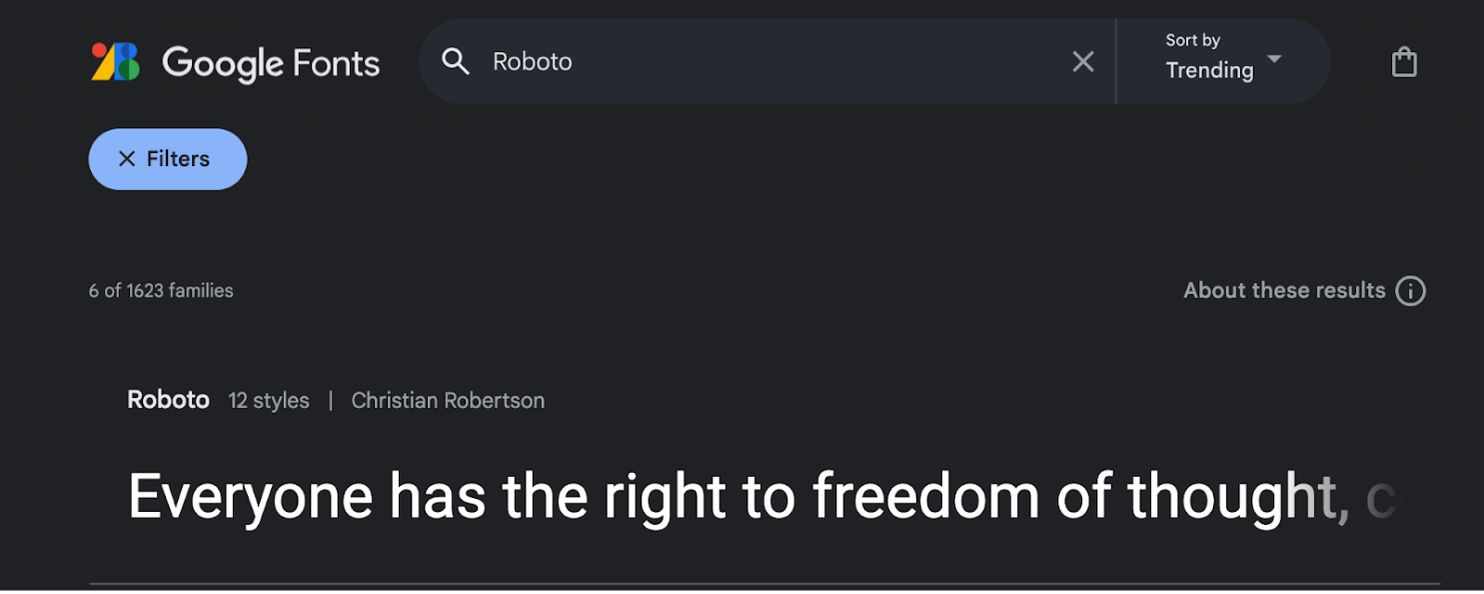
- • Passare a Caratteri di Google .
- • Cerca il carattere desiderato (ad esempio,
"Roboto"o"Baloo 2"). - • Clicca sulla scheda del font per aprirne i dettagli.
Stili selezionati:
- • Fare clic sull'icona "Prendi il font" nell'angolo in alto a destra.
- • Nella pagina di configurazione, clicca "Ottieni codice di incorporazione" .
Genera il link di importazione:
- • Nel pannello sinistro, seleziona i pesi/stili specifici di cui hai bisogno (ad esempio,
400 regolari,Bold 700). - • Passo cruciale: Nel pannello destro, seleziona "Web" e assicurati di cliccare
"@import"(invece di "link"). - • Copia l'URL generato nel blocco di codice.
2. Configurazione dell'infrastruttura
Una volta che hai il link dell'asset, iniettalo nel motore di traduzione.
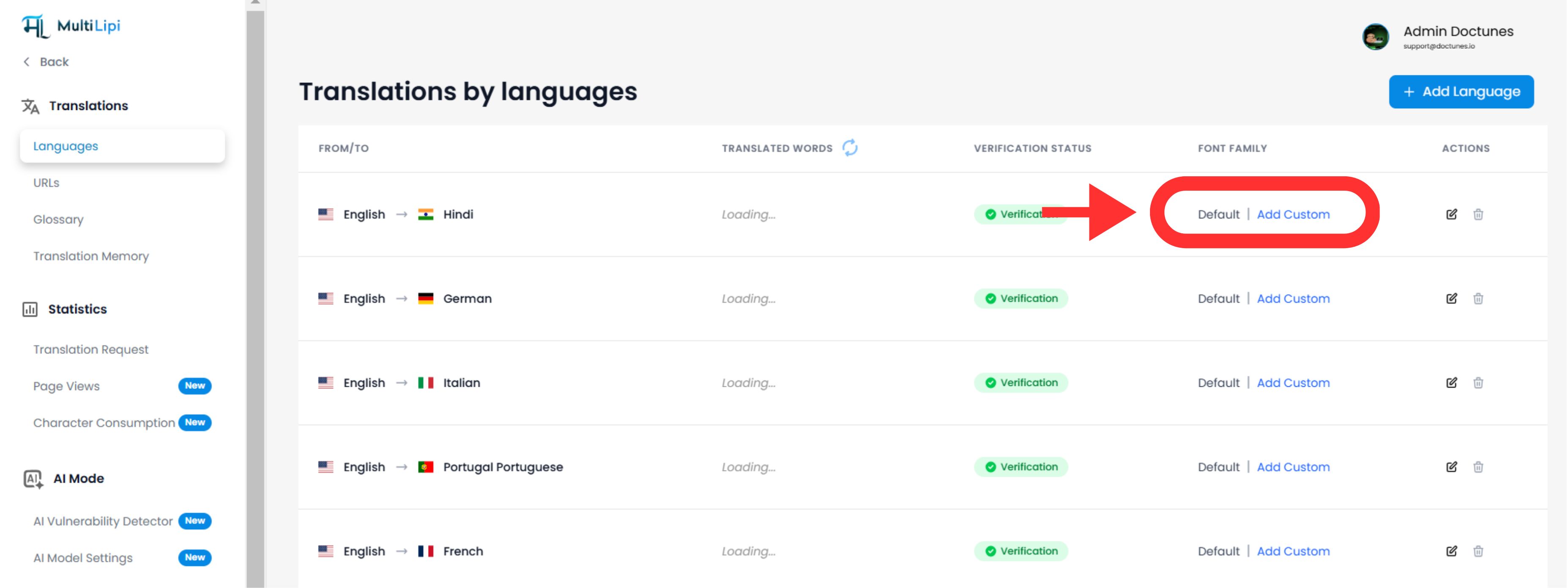
Naviga nelle impostazioni linguistiche:
- • Accedi al pannello di amministrazione di MultiLipi.
- • Nella barra laterale sinistra, fai clic su Lingue nell'ambito del Traduzioni sezione.
Inizia l'iniezione di font:
- • Individua la riga specifica della lingua che desideri modificare (ad esempio, Hindi ).
- • Fare clic sull'icona
"Aggiungi font"accanto a quella lingua.
Dispiega l'Asset:
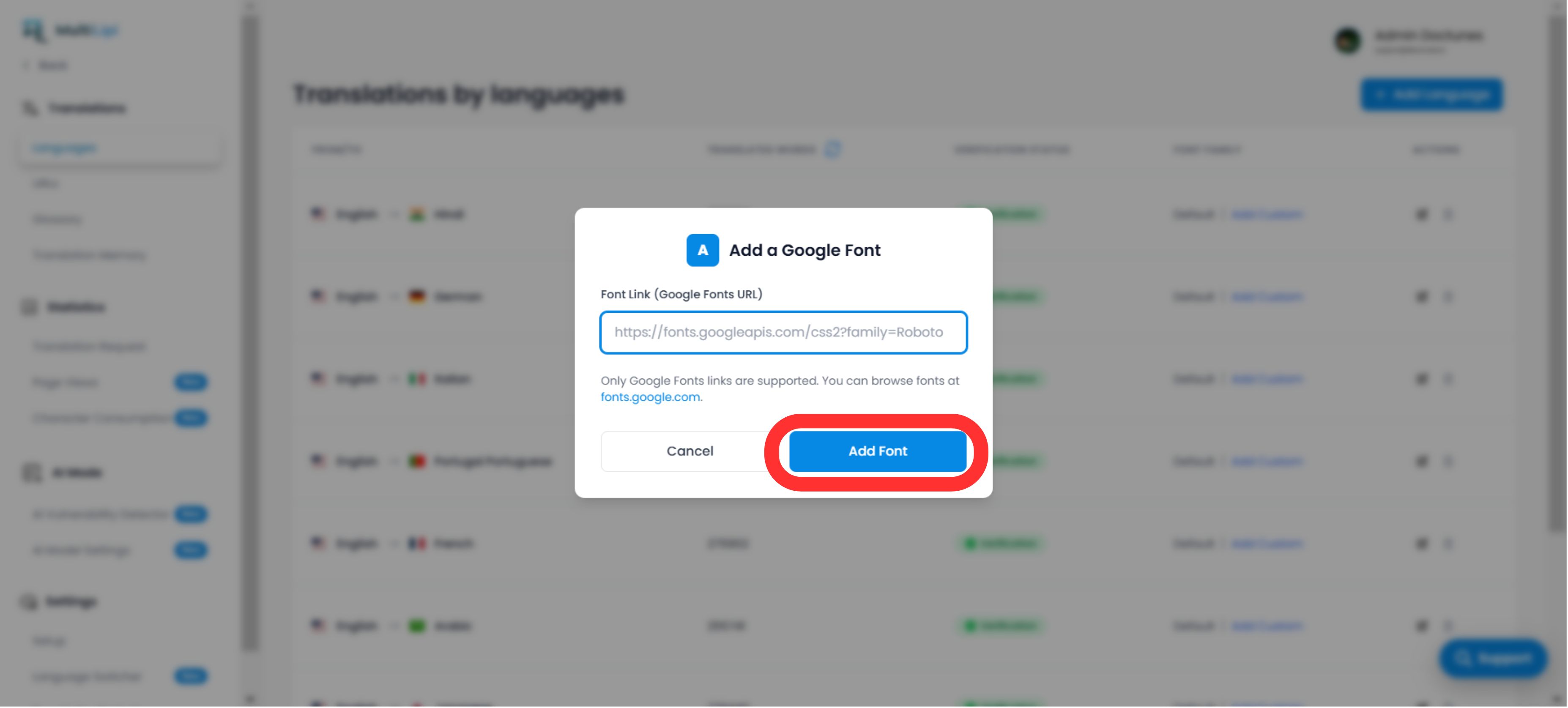
- • Apparirà un modo pop-up.
- • Colla: Inserisci l'URL del font Google che hai copiato nel Passo 1.
- • Esegui: Clic
Invia.
3. Validazione e Rendering
Dispiegamento immediato:
Una volta inviato, il font è applicato automaticamente a quella specifica versione linguistica del tuo sito. Non sono necessarie modifiche al codice CSS o manuali .
Fallback predefinito:
Se non viene aggiunto alcun font personalizzato per una lingua, il sistema continuerà a visualizzare il tuo sito web Famiglia di font predefinita .
Nota tecnica:
- • Assicurati di incollare un URL valido di Google Fonts .
- • Il sistema applica questo font Solo alla lingua di destinazione , preservando il tuo design originale per la lingua di origine.