
Tradurre il testo delle tue pagine web è solo metà della battaglia nella localizzazione di un sito web. Se i tuoi banner di marketing, infografiche, grafici o grafiche di prodotto contengono testo nella tua lingua originale, i visitatori internazionali sperimenteranno una esperienza di navigazione stridente e disconnessa — anche se ogni parola sulla pagina è perfettamente tradotta.
Strumento di traduzione di immagini IA di MultiLipi risolve questo problema istantaneamente. Invece di passare ore a ridisegnare manualmente la grafica localizzata in strumenti come Figma o Photoshop, MultiLipi rileva il testo all'interno delle immagini del tuo sito web, lo traduce utilizzando IA contestuale, e sostituisce l'immagine senza interruzioni, il tutto mantenendo intatto il tuo marchio.
Il problema: contenuti visivi non tradotti
Fino a 60% dei contenuti del sito web vive all'interno delle immagini: intestazioni promozionali, badge di prodotto, grafici di confronto delle funzionalità, foto del team con sovrimpressioni di testo e banner con invito all'azione. Gli strumenti di traduzione tradizionali perdono tutto questo. La traduzione di immagini AI di MultiLipi è il ponte che colma questa lacuna, offrendo ai visitatori internazionali un'esperienza veramente nativa. Scopri di più su come SEO multilingue dipende da ogni elemento della tua pagina che viene localizzato.
Principali vantaggi della traduzione di immagini AI
Vantaggi operativi che cambiano il modo in cui localizzi.
Massicci risparmi di tempo di progettazione
Non è necessario ricreare complessi livelli di progettazione grafica per ogni distribuzione linguistica. Quello che prima richiedeva a un designer 2-3 ore per lingua ora richiede secondi.
Uniformità linguistica completa
Applicando le regole del tuo glossario di progetto preesistente, il testo incorporato nelle tue risorse visive corrisponde perfettamente al testo del tuo sito web, senza alcuna incoerenza.
Tassi di rimbalzo inferiori e conversioni più elevate
I visitatori internazionali ricevono un'esperienza profondamente coesa e nativa che genera fiducia. Un'esperienza visiva localizzata rimuove l'ultima barriera all'attrito prima di una conversione.
Passo dopo passo: traduci le immagini del tuo sito web
Un processo visivo e no-code gestito tramite le tue pagine live.
La traduzione di un'immagine è un processo visivo e senza codice gestito direttamente tramite le pagine live del tuo sito web attraverso la nostra interfaccia interattiva. Non è necessario scaricare alcun file, aprire software di progettazione o scrivere una singola riga di codice.
Apri la tua scheda URL
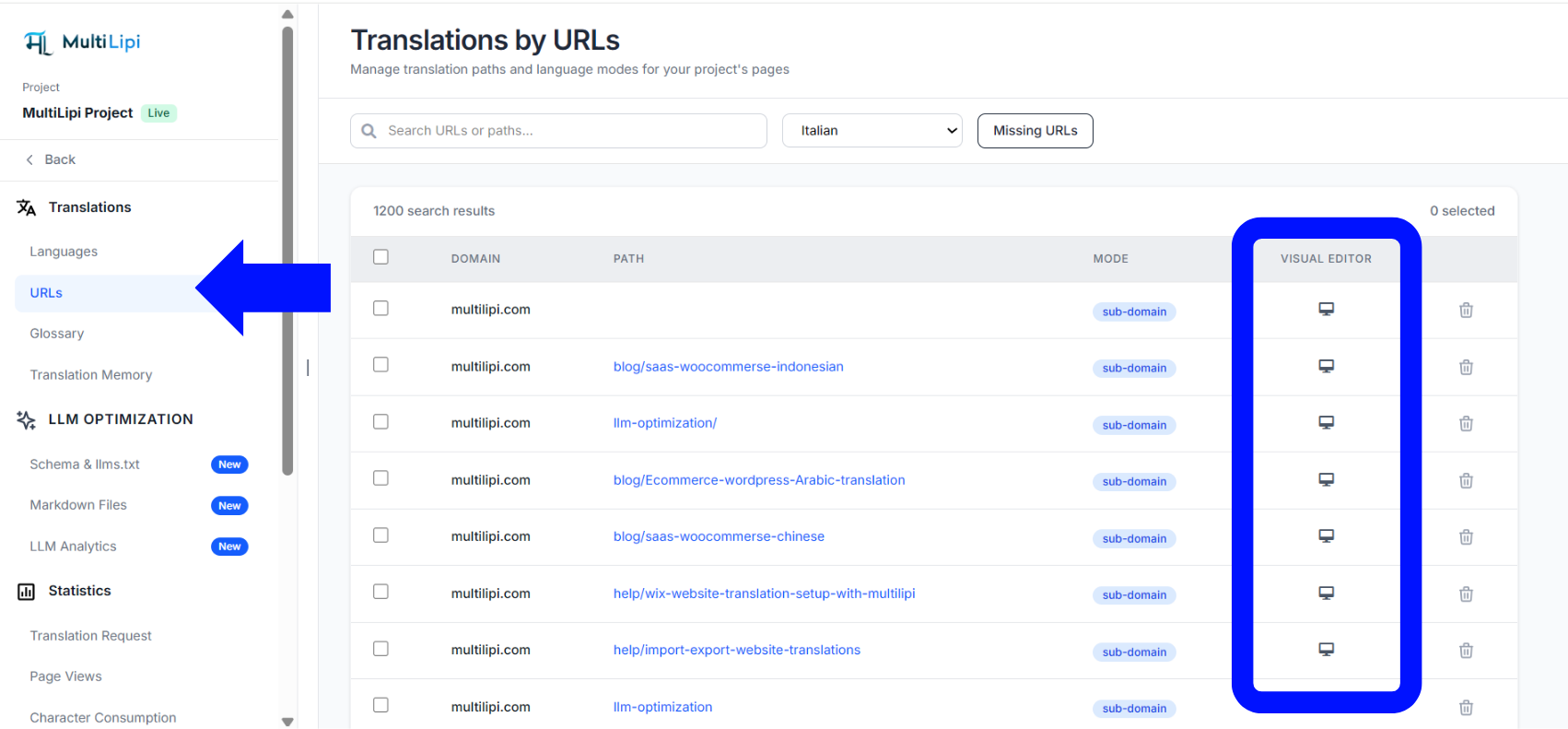
Accedi alla Dashboard MultiLipi e scegli il progetto del tuo sito web. Nel pannello di navigazione a sinistra, sotto il Traduzioni categoria, fai clic su URL. Questo pannello elenca ogni pagina indicizzata del tuo sito web.
Avvia l'editor visivo
Identifica la pagina che ospita la grafica che desideri modificare. Sposta il cursore sul lato destro di quella riga sotto il Editor Visivo colonna e fai clic su Icona Monitor/Schermo. Questo apre la tua pagina web live in una sovrapposizione modificabile, senza bisogno di estensioni o plugin del browser.
Seleziona l'Immagine di Destinazione
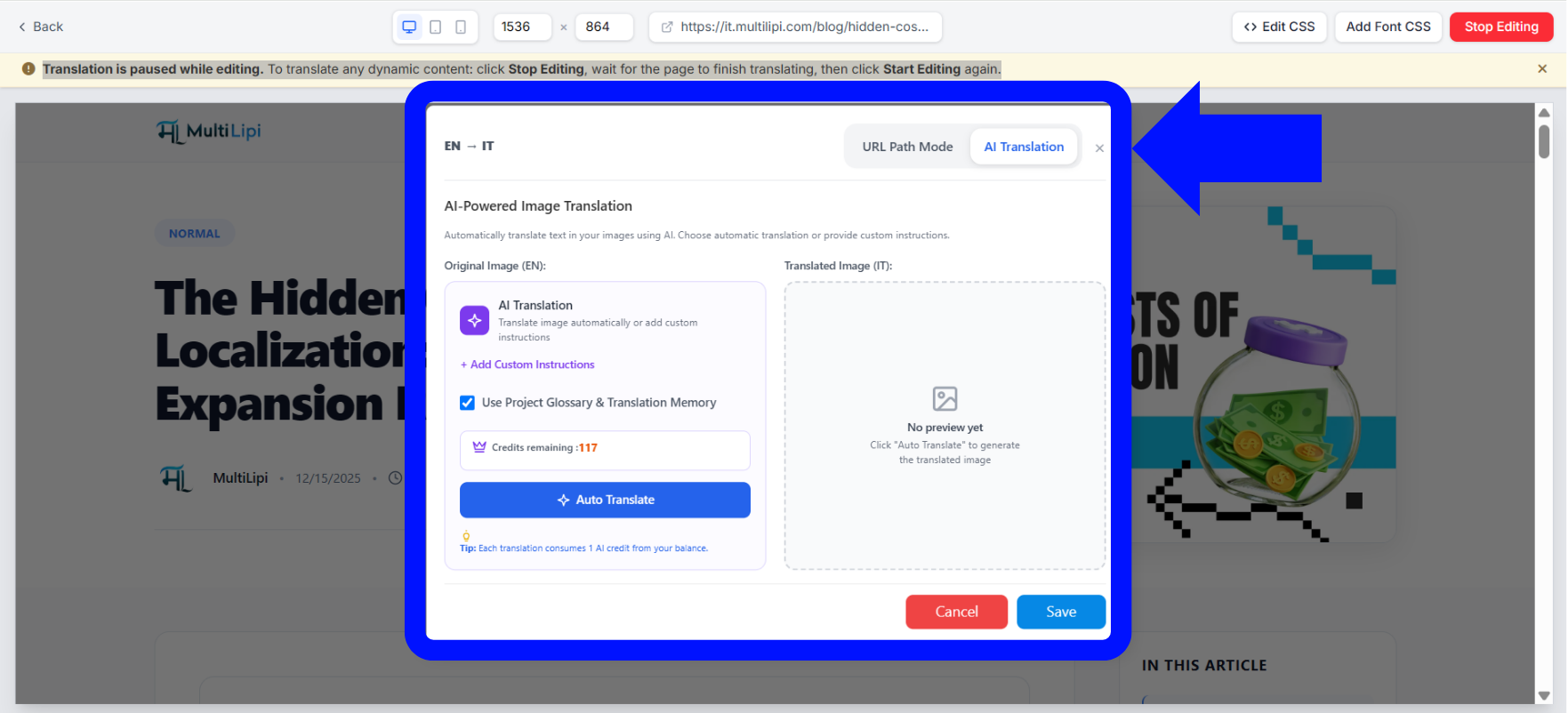
Sfoglia la tua pagina all'interno dell'editor e fai clic direttamente sull'immagine che desideri modificare. Nella sovrapposizione delle opzioni che appare sopra l'asset, assicurati di essere in modalità Traduzione IA Modalità di traduzione AI anziché la modalità percorso URL.
Configura le Opzioni di Contesto e Avvia la Traduzione
Una finestra modale intitolata Traduzione di immagini basata sull'IA ti verranno presentate le opzioni di configurazione:
Aggiungi istruzioni personalizzate: Fai clic su questo link per passare istruzioni specifiche sul contesto o sullo stile al motore di rendering.
Usa Glossario di Progetto e Memoria di Traduzione: Assicurati che questa casella sia selezionata per forzare l'immagine a rispettare i termini del vocabolario del tuo progetto pre-salvato, garantendo la coerenza del marchio.
Saldo della revisione: Controlla la tua allocazione totale accanto al blocco di stato Crediti rimanenti prima di procedere.
Fai clic sul prominente pulsante blu Traduci Automaticamente pulsante per avviare l'elaborazione.
Revisiona e Salva
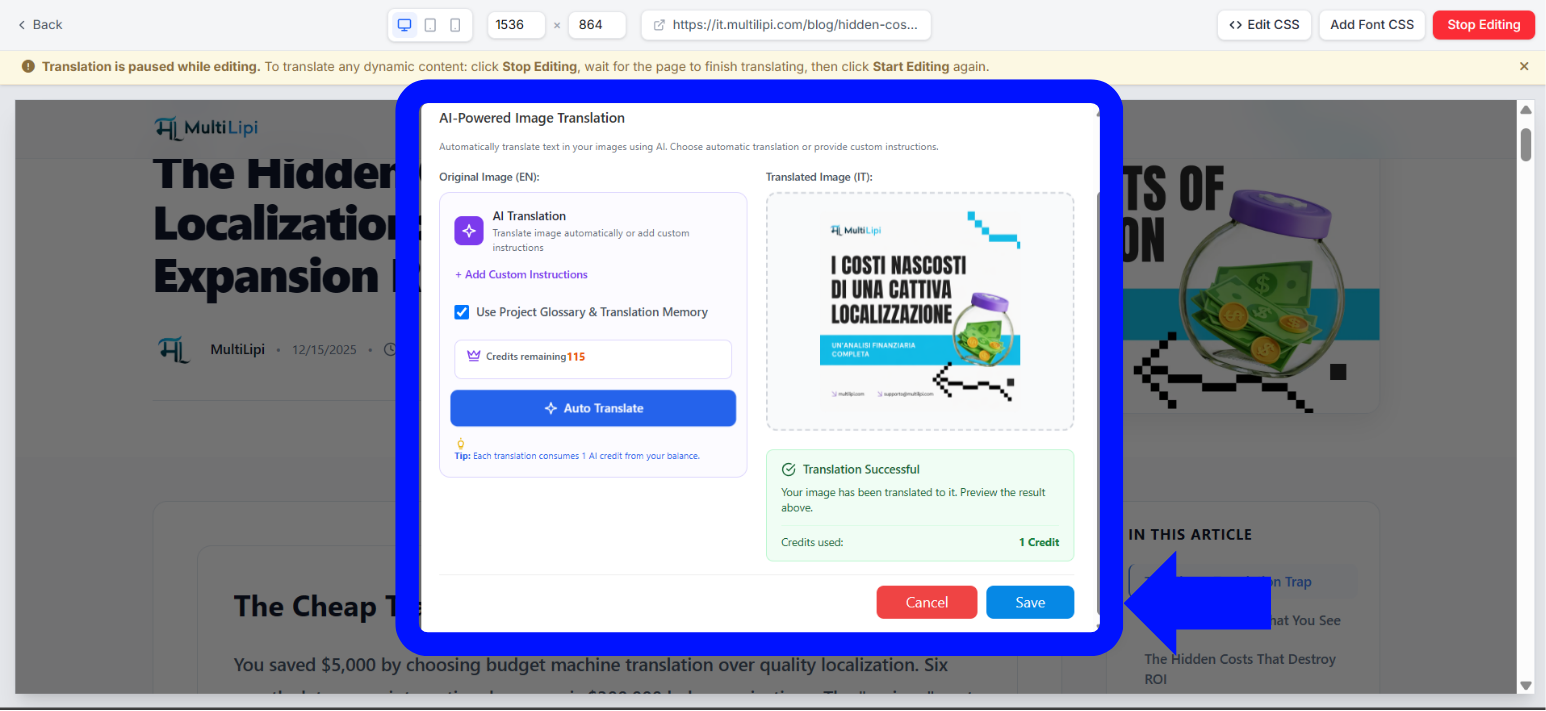
Attendi 1–2 minuti mentre la pipeline di ingegneria elabora gli asset. Una volta completata l'elaborazione, un pannello di validazione verde con la dicitura Traduzione riuscita apparirà, mostrando un'anteprima sotto il Immagine Tradotta colonna accanto a un elemento aggiornato Crediti utilizzati: 1 Credito indicatore.
Fai clic sul blu Salva pulsante nell'angolo in basso della finestra modale per pubblicare l'asset grafico localizzato sul tuo sito. Il tuo pubblico internazionale vedrà ora immediatamente l'immagine tradotta.
Come funzionano i crediti immagine e i componenti aggiuntivi
Un modello di transazione semplice che si adatta alle tue esigenze.
Panoramica del sistema di crediti
Comprendere come vengono consumati e reintegrati i crediti.
Modello di Consumo: Ogni singola richiesta di traduzione di immagini completata consuma esattamente 1 credito AI dal saldo aggregato del tuo account.
Inclusioni del piano: La tua allocazione di crediti predefinita è regolata dal tuo livello di abbonamento attivo. I livelli di progetto di fascia alta ricevono maggiori allocazioni di crediti nativi all'inizio di ogni ciclo di fatturazione.
Acquisto di crediti extra: Se il tuo team esaurisce la tua allocazione a metà ciclo di fatturazione, naviga alla pagina delle impostazioni del tuo Profilo Account all'interno della dashboard principale per acquistare istantaneamente componenti aggiuntivi di crediti immagine personalizzati.
Vuoi esplorare quale piano include la migliore allocazione di crediti per la dimensione del tuo team? Visita il Pagina dei prezzi di MultiLipi per confrontare i piani e trovare la soluzione giusta per le tue esigenze di localizzazione.
Suggerimento Pro: Gestione degli aggiornamenti grafici futuri
La memoria di traduzione ti mantiene sincronizzato automaticamente.
Un vantaggio principale dell'architettura di MultiLipi è come gestisce futuri aggiornamenti alla tua libreria multimediale. Se il tuo team di design aggiorna una grafica originale, ad esempio modificando l'immagine di un prodotto o aggiornando un prezzo promozionale sulla tua risorsa principale in inglese, MultiLipi rileva automaticamente la modifica.
I tuoi layout di testo precedentemente tradotti sono salvati in modo sicuro nell'account Memoria di Traduzione, il che significa che non dovrai ritradurre manualmente l'asset da zero. Il sistema sovrapporrà semplicemente il tuo testo localizzato approvato al layout grafico appena caricato, garantendo che i tuoi sottodomini internazionali rimangano perfettamente sincronizzati con il minimo sforzo.
Strumenti e Risorse Correlate
La traduzione di immagini AI funziona al meglio come parte di una strategia di localizzazione completa. Ecco risorse aggiuntive per aiutarti a costruire un sito web veramente globale:
Inizia Oggi Stesso a Localizzare i Tuoi Asset Visivi
Rimuovi l'ultima barriera per un sito web perfettamente localizzato.
Il contenuto visivo è spesso ciò che crea o distrugge la prima impressione che un utente ha della tua presenza digitale. Assicurandoti che i tuoi grafici, badge e intestazioni promozionali parlino la lingua madre del tuo cliente, rimuovi l'ultima barriera a un'esperienza di marchio veramente globale.
Torna al tuo spazio di lavoro, apri l'editor visivo MultiLipi in modalità traduzione IA pannello URL, e porta oggi stesso i tuoi asset visivi nell'era multilingue. Se sei nuovo a MultiLipi, esplora il nostro soluzioni di localizzazione per l'eCommerce o controlla il Pagina FAQ per domande comuni sulla configurazione.
Hai bisogno di aiuto? Se riscontri problemi di formattazione su grafiche altamente complesse o devi acquistare allocazioni di crediti di livello enterprise per il tuo spazio di lavoro, contatta il supporto di MultiLipi per configurare le impostazioni della tua piattaforma. Il nostro team di ingegneria è pronto ad assisterti.